
Export & download
Export a clip

On the timeline, drag the trim handles to the start and end, then export an MP4. The clip is saved in the quality you are watching, so a lower quality gives a smaller file.
Export multiple recordings
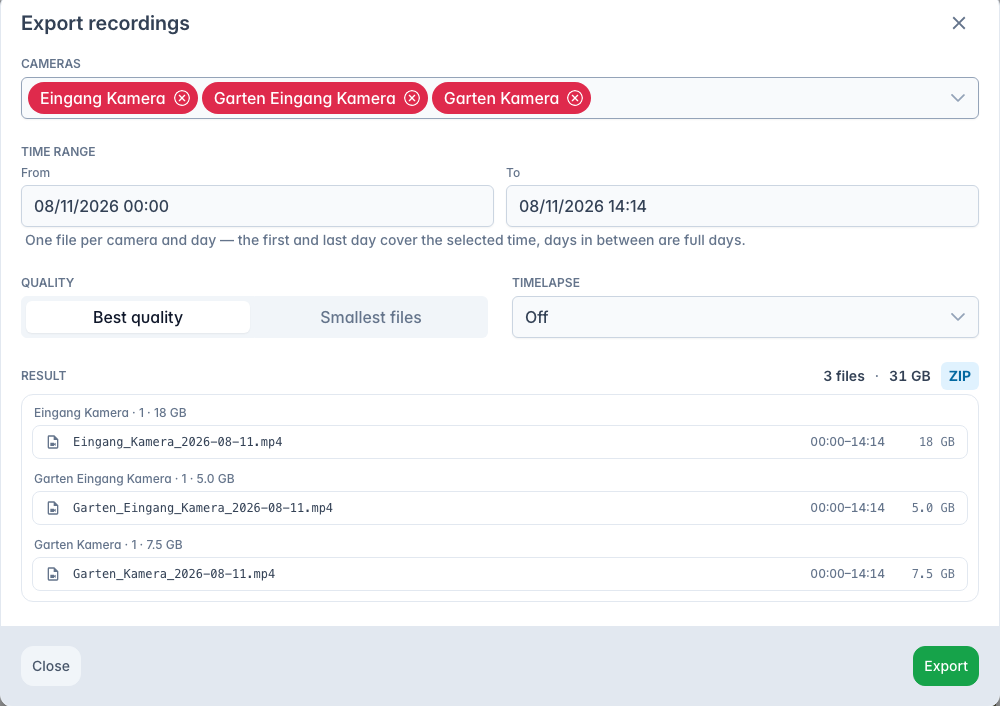
The download button in the Recordings view opens Export recordings: one or more cameras, a time range across days, a quality (Best quality or Smallest files), and optionally a timelapse interval. You get one MP4 per camera per day (first and last day cut to the selected range, days in between in full) and a size estimate up front. Several files come as one ZIP, a single file as a plain MP4. The dialog's quality choice is independent of what you are watching.
Timelapse
Both export flows can produce a timelapse instead, sampling frames at an interval to compress a long period into a short clip.