
Set up sensors
Most sensors come from plugins: you enable the providing plugin and the sensor in the camera's settings. Every sensor, including ones without a camera, is managed on the Sensors page. Both need admin.
Open the Plugins tab
The Plugins tab in a camera's settings is grouped into categories:
- Detection. The detectors: motion, object, audio, face, face recognition, person re-ID, segmentation, license plate, and CLIP.
- Accessories. Controllable accessories and state sensors, such as lights, locks, switches, sirens, and contact sensors.
- Core. Single-provider sensors such as PTZ and battery.
- Hub. Smart-home and platform integrations, such as a HomeKit bridge.
- More. Enable or disable whole plugins for this camera.
A camera added through a plugin (such as ONVIF or Reolink) also has a category for that plugin, holding its settings.

Assign and enable sensors
Within a category, pick a sensor type, then choose the plugin that should provide it. Detection types take one provider at a time; accessories can come from several plugins. Each enabled sensor appears in the Sensors list, where you can rename it.
A doorbell sensor assigned to a camera starts a camera event on every ring, without enabling it under Detection.
Configure settings
Plugin settings for this camera and per-sensor settings appear as a form in the same place. Changes take effect immediately.
Enabled sensors show up in the camera's Overview and on the video. See Controls & states to use them, and PTZ & autotrack for PTZ cameras.
The Sensors page
The page has two lists. Adopted sensors holds everything camera.ui manages, plugin-provided and virtual. A camera's own sensors (motion, battery, PTZ) are listed only where their plugin is enabled for that category on that camera. The settings button next to the search field holds Show only enabled camera sensors (on by default) and Hide camera sensors; turn both off to see everything when cleaning up.
Each row shows the connection state, name, ID, type, providing plugin and assigned cameras. The ID is the sensor's address in its source system (for Home Assistant, the entity id) and tells same-named sensors apart; search matches it too. It is a label, not the identity: rename the entity in Home Assistant and the sensor keeps its cameras, automations and history, only the ID changes. Sensors you created yourself have none.
The dot before the name shows one of four states: connected, not connected (the plugin is stopped), unavailable (the plugin runs but cannot reach the sensor, or the source reports it as unavailable), and removed in the source (the entity was deleted there). Nothing is deleted on its own: a removed sensor stays until you delete it, so nothing that referenced it breaks silently. A lock next to the camera marks camera hardware, a crossed-out eye marks a sensor hidden from your smart home, and the icon glows while the sensor is active. The floating buttons create a virtual sensor and start select mode for deleting several at once.
Discovered lists what plugins found, with name, ID, type, room and plugin. Nothing is adopted on its own: a plugin like Home Assistant offers everything it understands and leaves the choice to you. An adopted sensor (one row, or many via the select button) moves into the list above, where it can be assigned to cameras. Rescan asks the plugins again; the list also refreshes by itself while the page is open.
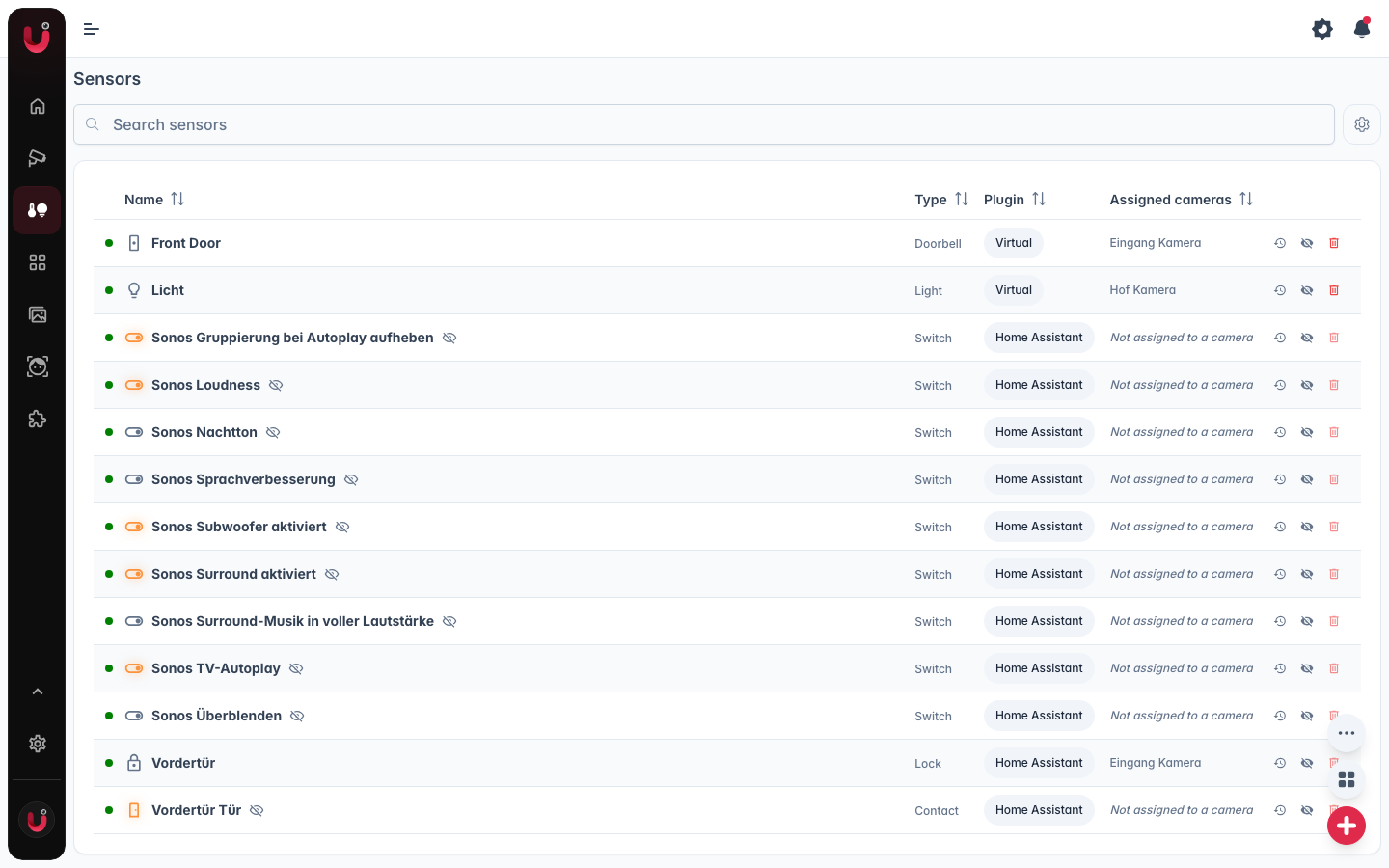
Click a row to edit the sensor:
- Name. How the sensor appears everywhere.
- ID. The sensor's address in the system it comes from, read-only. Only shown when the sensor has one.
- Assigned cameras. Pick any number of cameras. The sensor shows up on those cameras and can trigger their detection. Camera hardware is fixed to its camera and can't be re-assigned.
- Expose sensor. Whether the sensor shows up in HomeKit, Home Assistant, and MQTT.
Controllable sensors can also be operated right in this dialog.
Row actions:
- History. The sensor's recorded state changes.
- Delete sensor. Any adopted or virtual sensor, connected or not. Only a camera's own hardware sensors cannot be deleted while their camera is connected, they would come back with it.[1]
Virtual sensors
Sensors without a plugin behind them are created on the Sensors page, see Virtual sensors.
Deleting removes the sensor and its assignments. A deleted adopted sensor shows up under Discovered again; adopting it once more creates a new sensor, and anything that referenced the old one (automations, smart-home exports) must be pointed at the new one. ↩︎