
Getting started
From a running server to your first camera. If the server isn't installed yet, start with Installation.
1. Open camera.ui
camera.ui runs over HTTPS. How you open it depends on how you installed it:
- Desktop app. It opens automatically when you launch it (in Server mode it starts the server for you).
- Server (Docker, Proxmox, bare-metal). Open
https://<server-ip>:3443in your browser, orhttps://localhost:3443on the same machine.
First-visit certificate warning
camera.ui uses a self-signed certificate, so the browser warns on the first visit. Continue with Advanced → Proceed. To get rid of the warning, install the certificate from Settings → System → Certificate.
2. Sign in
The first time, sign in with the default account:
- Username:
admin - Password:
admin
You'll replace these in the next step.
3. First-run setup
The first sign-in opens a setup wizard:
Welcome → Appearance → Account → Finish
Welcome
- New Installation. Set up a fresh server.
- Restore from Backup. Upload a backup archive from another camera.ui install. camera.ui restores your settings and restarts.
Appearance
Theme (light, dark, or follow the system) and language.
Account
Your own username, password and optional avatar. This account replaces the default admin / admin.
Choose a strong password
This is an administrator account. Use a strong, unique password, especially if you plan to reach camera.ui from outside your network.
Finish
Enjoy! saves and signs you out. Sign back in with the username and password you just set.
4. Add your first camera
After signing in you land on the Home screen. Select Get started, or open Cameras.
The Cameras page scans your network and lists the cameras it finds under Discovered. Select one, enter its username and password, and it's added. If your camera isn't found, use Add camera to enter its stream details by hand.
For the full walkthrough, see Adding a camera.
Getting around
The sidebar on the left is grouped by purpose. Your daily pages sit at the top. A Manage group holds cameras, sensors, faces, automations, plugins and instances. A System group keeps the diagnostic pages and starts collapsed. On a phone the same groups show up in the menu.
The pencil at the top of the sidebar starts edit mode: drag pages to another spot or group, hide settings pages with the eye, and confirm with the check. Reset to defaults brings back the original layout. The layout is saved to your account and follows you to every browser and device.
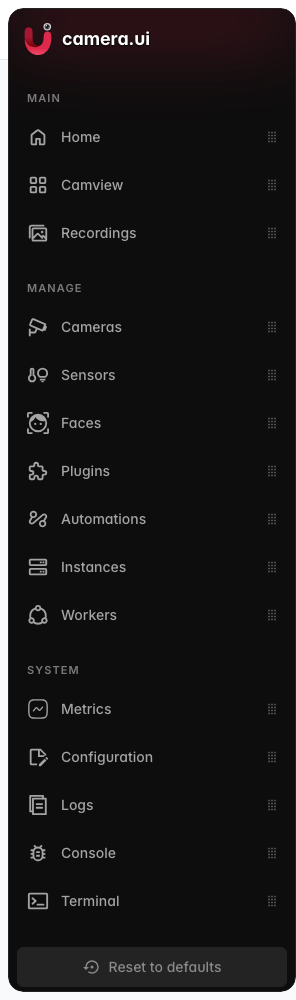
In Settings → Appearance you can also add the settings pages to the sidebar as their own group, and choose which groups can collapse.
Next steps
- Live view — watch your cameras live
- Recording (NVR) — turn on 24/7 or event recording
- Detection & AI — add motion and object detection
- Remote access and the mobile apps — reach your cameras from anywhere