
Workers
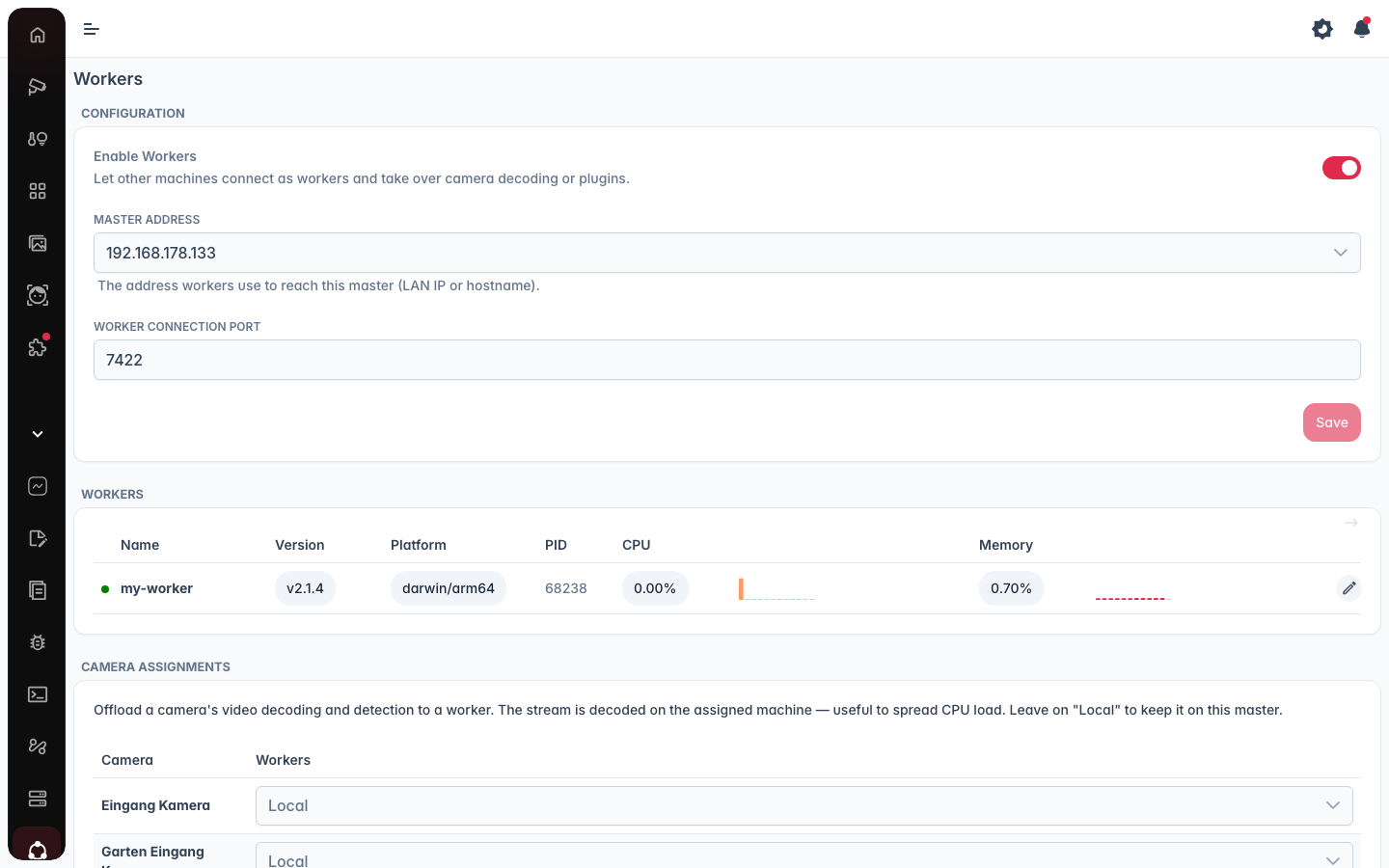
A worker is a second machine that takes on part of a server's processing. The main server (the master) keeps the UI, the settings and the recordings; workers contribute compute. Manage them in Workers (in the menu).
A worker takes over decoding and detection for selected cameras, or runs an entire plugin, for example a detection backend that needs a GPU the master doesn't have, or a plugin the master's platform can't load.
How workers work
A worker is a regular camera.ui installation started in worker mode. It has no UI of its own, holds no cameras and stores no recordings; it connects to the master and waits for work.
- The worker connects outward. Pairing goes to the master's HTTPS port, the running connection to the master's worker port (default
7422). Only the master has to be reachable; nothing needs to be opened on the worker machine. - Paired once, then on its own. A one-time pairing code is exchanged for the worker's own credentials. Nothing is shared between workers, each one can be revoked independently, and after the first start the worker reconnects by itself.
- Assignments follow the worker. Cameras and plugins you assign run on the worker, fall back to the master while it's offline, and move back when it returns (see Failover).
Master and worker can mix installation types: a Docker server with a desktop app worker, a desktop-app server with a Docker worker, and so on. The camera.ui version should match across machines; the workers list warns when it doesn't.
Enable workers
Turn on Enable Workers on the master and set a Master Address, the LAN IP or hostname other machines use to reach this server. Workers can't be enabled without an address. A Worker Connection Port (default 7422) is also required; changing it later means already-paired workers must be re-paired.
Pair a worker
Generate Pairing Code creates a one-time code (valid for 15 minutes) and a configuration snippet:
worker:
  master: <master address>
  apiPort: <api port>
  pairingCode: <code>
  name: my-worker
  capabilities:
    - frameDecoding
    - pluginHost
Only the first start needs the code. How the snippet reaches the worker depends on the installation:
Set up the worker machine
Worker in Docker
A worker runs from the same image as the server. Save this as docker-compose.worker.yml on the second machine, with your master's address and the pairing code from above:
name: cameraui-worker

services:
  cameraui-worker:
    image: ghcr.io/cameraui/camera.ui:latest
    container_name: cameraui-worker
    restart: unless-stopped
    network_mode: host
    environment:
      - TZ=Europe/Berlin
      - CAMERA_UI_WORKER=true
      - CAMERA_UI_WORKER_MASTER=192.168.1.10
      - CAMERA_UI_WORKER_PAIRING_CODE=XXXX-XXXX
      - CAMERA_UI_WORKER_NAME=worker-1
    volumes:
      - cameraui-worker-data:/data

volumes:
  cameraui-worker-data:
Then start it:
docker compose -f docker-compose.worker.yml up -dThe master address takes a hostname or IP, without a scheme. CAMERA_UI_WORKER_API_PORT is only needed if the master's HTTPS port is not 3443, a desktop app as master listens on 3543. To give the worker a GPU, see Hardware acceleration below.
Worker with the desktop app
A machine with the desktop app joins as a worker when you choose Worker in the mode picker on first start (or later via Switch mode… in the tray menu) and enter the master's address and the pairing code. The app then shows only a status window. If the address is wrong or the code has expired, the picker reopens with the error.
Two tray options: Open At Login starts the app with the system, minimized to the tray, and Close to tray keeps the worker running in the background when the window is closed.[1] The address takes a hostname or IP, with :port only when the master's HTTPS port differs from the default.
Worker on Linux (bare-metal)
Paste the snippet into the worker machine's config.yml, then start it with cameraui --worker run. To keep the machine a worker across reboots, install it as a service instead: cameraui --worker install (the flag is stored with the service, see Linux (bare-metal)).
Hardware acceleration
In Docker, the override files from the main deployment do not fit: they patch the service cameraui, not cameraui-worker, so layering one on top starts a second, unrelated container. Put the image flavor that matches the hardware and the device into the worker file itself:
services:
  cameraui-worker:
    image: ghcr.io/cameraui/camera.ui:intel # or :nvidia, :amd
    devices:
      - /dev/dri:/dev/dri
For NVIDIA, take the environment and deploy blocks from the NVIDIA override as well, and install the NVIDIA Container Toolkit on the worker machine. On bare-metal and in the desktop app there is nothing to pass through, the host driver is all it takes.
Which decoder a camera actually uses on a worker is set per camera, under Frame Worker in its settings. The second selection there applies while the camera runs on a worker, so master and worker can sit on different hardware. Hardware acceleration covers host drivers and how to check what the container really got.
Environment variables
The snippet values can also be set as environment variables. CAMERA_UI_WORKER=true starts worker mode without the --worker option, and CAMERA_UI_WORKER_MASTER, CAMERA_UI_WORKER_API_PORT, CAMERA_UI_WORKER_PAIRING_CODE, CAMERA_UI_WORKER_NAME and CAMERA_UI_WORKER_CAPABILITIES (comma-separated) cover the rest of the snippet. No config.yml is needed then, and if you set both, the environment variable wins.
Without capabilities the worker offers everything; the master still only assigns what you give it. Set them to restrict a worker to one job, for example only hosting plugins.
The workers list
Once paired, a worker appears in the Workers list showing its online/offline status, platform (OS/architecture), process ID, version, and live CPU and memory use. A warning is shown if a worker's version differs from the master's. When a worker is behind, a dot appears on the Updates entry in the navigation.
A worker that fails to link up at startup, or loses the link later, logs the reason in its log instead of looking online. Cameras and plugins running on a worker show up in Metrics with the worker's name and its load.
The Updates page lists every lagging worker next to the server and the plugins, and a lagging worker shows an Update button right in the list too: the worker installs the version the master is heading for and restarts itself. Normally that is the version the master runs; when a server update is waiting, it is that one, so the worker does not have to be updated twice. Desktop-app workers update the same way. See Updating.
Camera and plugin assignments
Under Camera Assignments, choose which camera each worker decodes and detects on; cameras left as Local stay on the main server.
Under Plugin Assignments, an entire plugin can run on a worker instead of the main server. Only workers whose platform is compatible with the plugin are offered. The worker installs and runs the plugin; it's still configured normally in the UI.
A plugin on a worker uses the worker's own network addresses, not the Server addresses of the main server. Choose them with Edit Worker in the workers list; left empty, the plugin listens on all of them. Changing them restarts the plugins on that worker.
Failover
Workers send a heartbeat every 5 seconds and are considered offline after 15 seconds without one. If a worker disconnects, its assigned cameras and plugins fall back to the main server automatically (a plugin only falls back if the main server's platform can run it). When the worker reconnects, its cameras and plugins are automatically re-homed to it.
Removing a worker revokes its credentials and drops the connection; its assigned cameras and plugins fall back to the main server.
Open At Login is offered on Windows and macOS. Close to tray is offered on Windows and Linux; on macOS, closing the window leaves the app running anyway. ↩︎