
Model training
camera.ui's detection models are trained on real footage from real installations, contributed by the community. The Training view collects sample frames from your cameras, you label and verify them, and you decide which ones go to the shared training pool. Nothing is uploaded on its own.
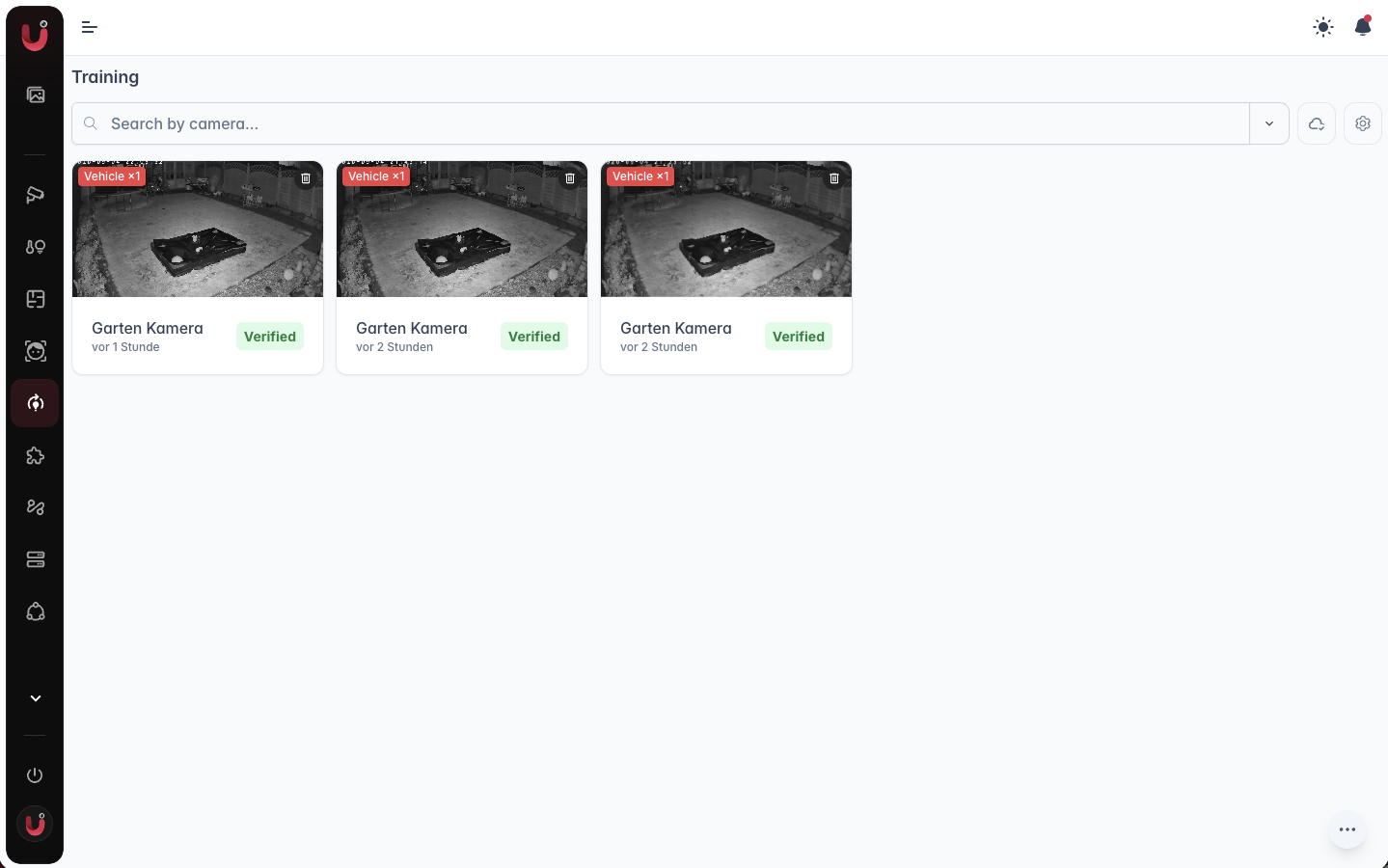
How frames are collected
During detection events each camera saves a frame when something new shows up: a new object, a changed position, a fresh face or license plate. An unchanged scene doesn't repeat, however long the event runs. Of the few seconds around such a moment it keeps one frame and prefers objects the detector was unsure about, small ones and animals over large, obvious ones; about one time in ten, picked at random, it keeps the first frame instead, so ordinary scenes stay in the mix. camera.ui keeps at most 200 frames per camera: once full, the oldest unreviewed frames make room, and unreviewed frames are deleted after 14 days either way. Verified frames stay until you submit or delete them.
A privacy zone is blacked out of the frame before it is saved, so nothing behind one is ever collected or submitted.
Collection is on by default and stays on your disk. To stop it, open the gear menu in the Training view and turn off Collect candidates. The view is only visible to admins.
Labeling frames
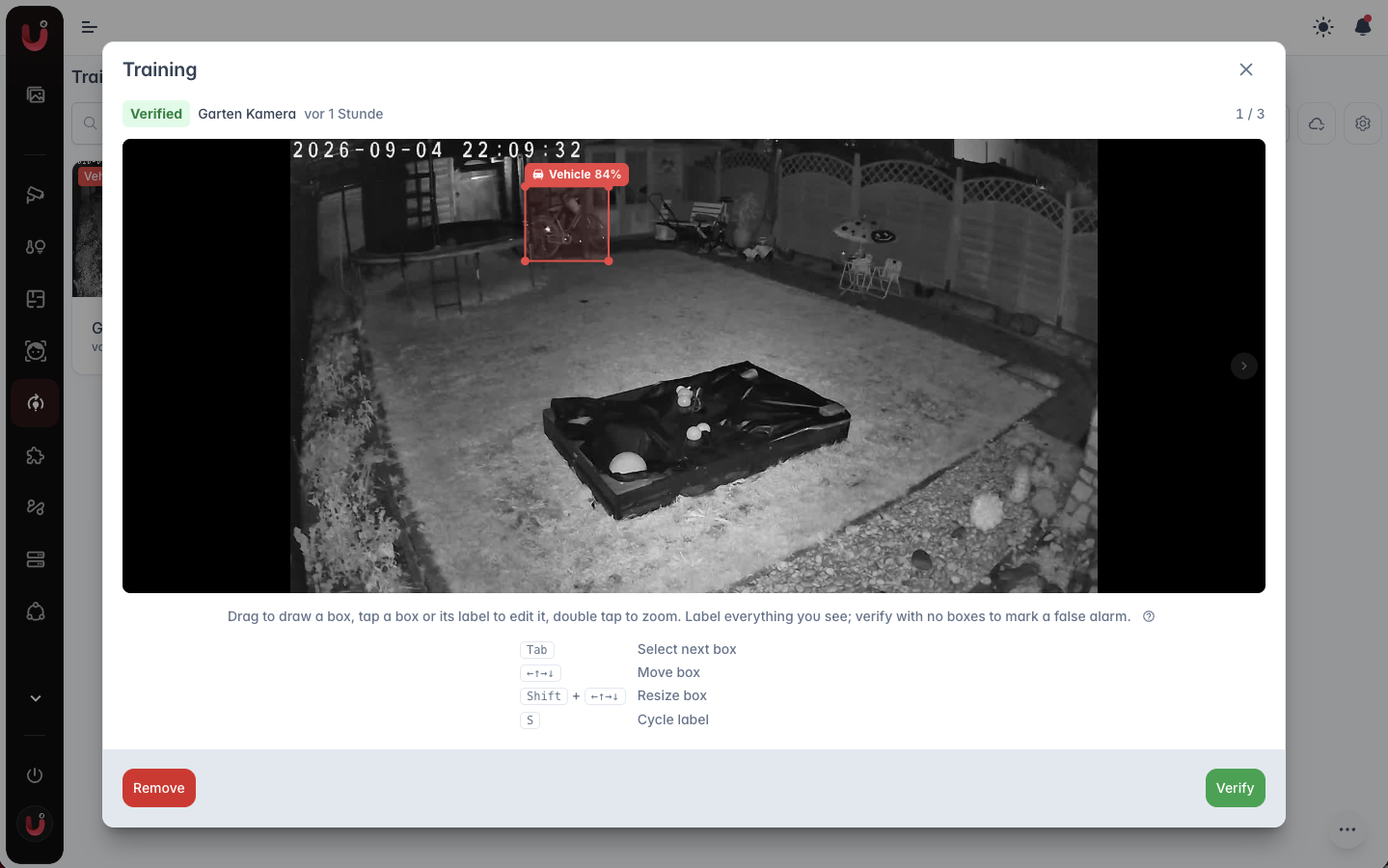
Opening a frame starts the editor. Drag to draw a box, tap a box or its label to change it, double tap to zoom. On a keyboard, the question mark button in the editor lists the shortcuts.
Show boxes of the previous image (V) draws the boxes of the frame before as outlines, the plus on one takes it over, Shift + V takes all.
Detections below the camera's detection threshold show as dotted outlines with their score. The plus on one labels it; leave the ones that show nothing.
What makes a frame useful:
- Label everything you see. Every person, vehicle, animal and package in the frame, not just what triggered the event, parked cars and vehicles cut off at the edge of the picture included. An unlabeled object teaches the model that it isn't one. The boxes camera.ui drew for you include objects outside your detection zones and labels you never turned on; they belong in the data, leave them in.
- Pictures of people are not people. A person on a poster, a screen or a photo gets no box. Remove the one camera.ui drew there.
- Keep boxes tight. The box hugs the object, without a margin.
- Include hidden parts. Box a partly hidden object in full, as far as you can judge its extent.
- Faces and license plates get their own boxes, on top of the person or vehicle box.
- Type the plate text. With a license plate box selected, a text field takes the plate as printed. Optional, and the ground truth for plate reading.
- False alarms are valuable. If the frame shows none of the objects, delete all boxes and verify it empty. That is exactly how the model unlearns a false trigger.
Verify marks the frame as done. Only verified frames can be submitted.
Submitting to the pool
The submit button at the bottom right sends every verified frame of the selected camera, whatever the list filter shows. To send only some, use Select candidates. Submitted frames leave the local list. Submitting requires your server to be signed in to camera.ui Cloud.
My contributions in the toolbar lists everything you have submitted, with the frame, its labels, and whether it is still waiting (Submitted) or already used (In training). Images and labels are tied to your cameraui.com account; deleting a contribution removes it from the pool.