
Home
Home shows every camera you have access to as a card with a still image.
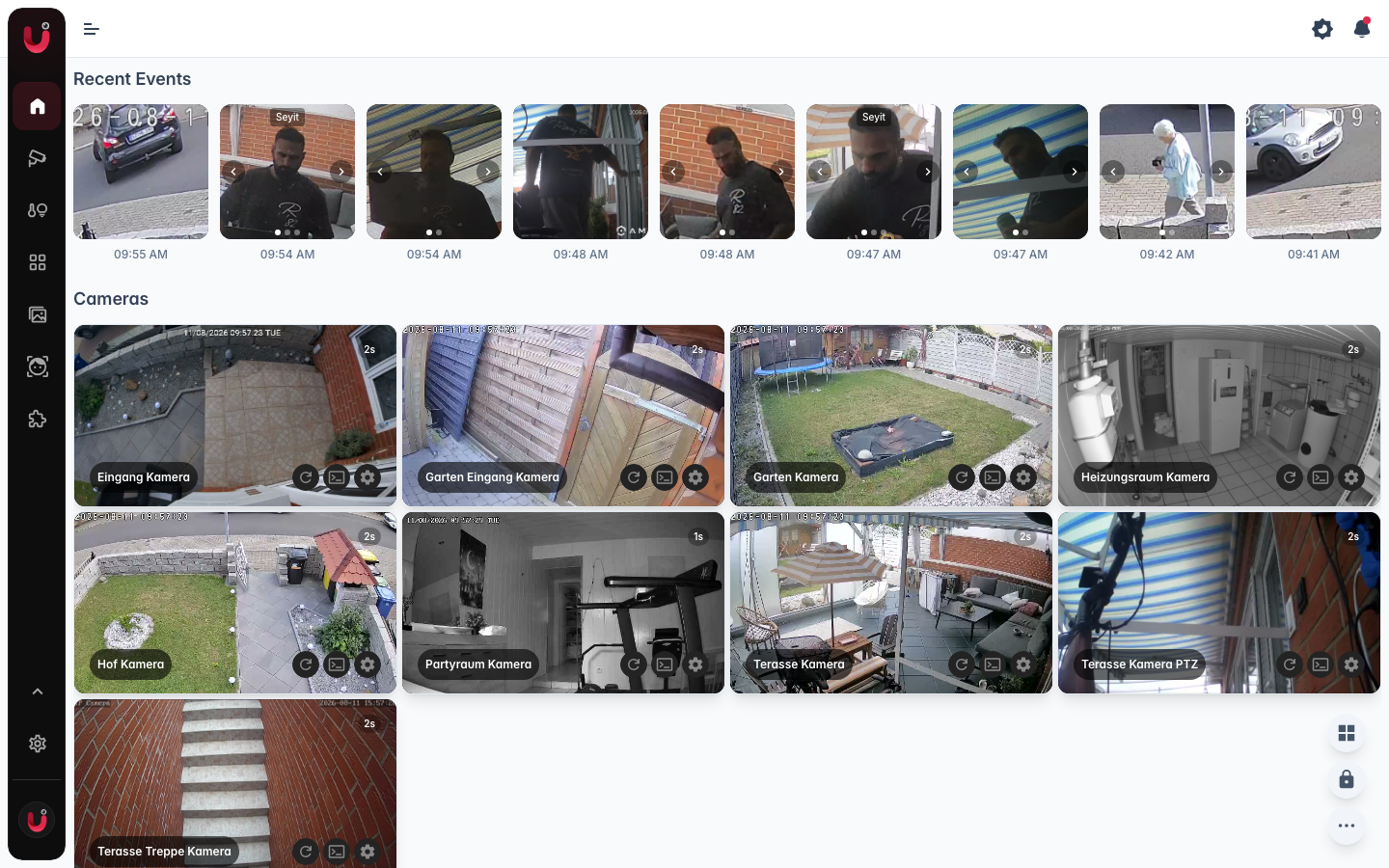
Above the cards, Recent Events is a row of recent moments you can scroll sideways. A visit with several phases shows one card per moment, like the timeline, and selecting a card opens it at that moment. Cards with a recognized face or a read license plate get arrows to browse the pictures, and resting your finger on a card (or hovering on a computer) plays a short preview. Episodes appear here too, as a mosaic card showing how many cameras took part. See Events & detections.
The filter button in the corner decides which cameras show which kinds of detection there: person, vehicle, animal, face and license plate, each with its own list of cameras. An event only disappears when everything detected in it is hidden, so someone walking by while a car passes still shows. Hidden events are still detected, recorded and found in Recordings. The choice belongs to your account.
With no cameras yet, Get started takes admins to add one.
Camera cards
- The picture. A snapshot, not a live stream.
- Status icons. A red camera icon next to the name means the camera is disabled. An amber moon means detections are snoozed for it.
- Disabled cameras. The image is replaced by a dark tile with a crossed-out camera icon.
Selecting a card opens the camera page with the live view, recordings, and the timeline.
Three buttons sit in the bottom right of a card:
- Refresh snapshot. Pulls a new picture from the camera right away.
- Log. Opens that camera's log in a dialog, for admins. You can download it from there.
- Settings. Opens the camera settings drawer, for admins.
A disabled camera only offers Settings.
Arranging the cards
A floating control sits in the corner:
- Group by room (with more than one camera) switches from one flat grid to sections per room, using the Room you set in the camera settings. Cameras without a room land in Default, which comes first, and the remaining rooms are sorted by name. Show all cameras switches back.
- Edit layout / Lock layout unlocks the cards. Unlocked, you can drag them to a new place, and the eye button on a card hides it from Home or shows it again. Hidden cameras stay on the page, dimmed, until you lock the layout. The order is kept; in the grouped view you reorder within a room.
Hiding only changes Home. The camera keeps streaming, detecting and recording, its events still show in Recent Events, and selection mode leaves it out. Hidden cameras belong to your account.
Cards you never moved are sorted by name.
Snapshots and how they refresh
The card picture is a stored still image, reused across the app. When a camera takes a new one is set under New picture in the Snapshot section of the camera settings:
- Regularly. A timer takes a picture every 10 seconds to 1 hour (60 seconds by default). Looking at the camera never wakes it.
- When viewed. A new picture only when someone looks at the camera and the stored one is older than the age you set.
- Only on request. The camera is left alone until an automation, Refresh snapshot or the API asks. Made for battery cameras.
A picture taken by an automation or the refresh button shows up on the cards right away, in every mode. Disabled cameras are never asked for a new one.
If a camera is offline or slow to answer, the card keeps the last picture it had rather than going blank.
The snapshot age badge
The badge in the top right corner of a card shows how old its picture is, counting up every second.
It reads now for the first second, then seconds (14s), minutes (3min), hours (2h), days (5d), months (2m), and years (1y).
The badge resets with every new picture. On Regularly it stays around the interval, and a badge climbing well past it means the camera is not delivering, usually because it is unreachable. On When viewed and Only on request a high value is normal until the next picture is taken.[1]
Selection mode
Admins can act on several cameras at once. Select the arrow button in the floating control to enter selection mode.
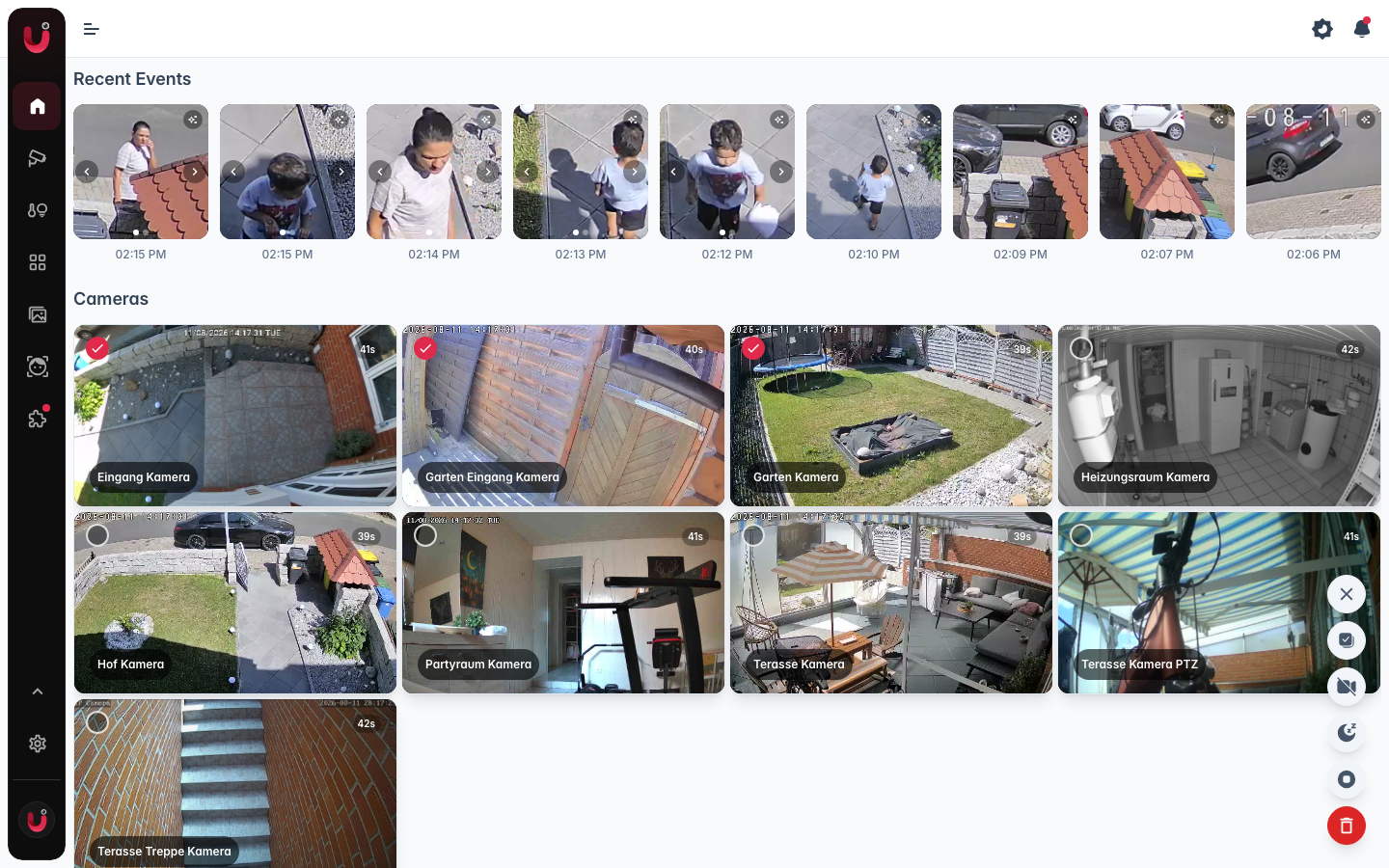
In selection mode a card ticks instead of opening the camera, and dragging and the per-card buttons are off.
The floating control now holds the bulk actions:
- Disable selected cameras / Enable selected cameras. Disabling stops a camera's live stream and its detection, and its card goes dark. The camera stays configured.
- Snooze detections for selected cameras / Resume detections for selected cameras. Snoozing keeps the camera streaming but pauses its detection.
- Enable recording for selected cameras / Disable recording for selected cameras. Only appears when at least one camera on the page is set up for recording, and it only acts on those cameras. See Recording.
- Remove selected cameras. Deletes the cameras.
Bulk actions run through the cameras one after another, so with many cameras picked it takes a moment.
Next steps
- Live view — watch a camera, with the player controls.
- Camview — several cameras at once in a grid.
- Camera settings — sources, room, detection, and everything per camera.
The badge is only shown on the cards on Home, not in the player or in Camview. ↩︎