Episodes
When several cameras see the same activity around the same time, camera.ui can bundle those sightings into one episode: a single title and a short story that follows the subject across cameras, in order. A person walking from the driveway to the front door becomes one episode instead of three separate events.
Episodes need AI descriptions: the NVR plugin needs a model to write the story.
Turning it on
In Settings → Recordings, open the Episodes tab and turn on Enabled. Every camera takes part; an episode forms once at least two different cameras saw related activity. With a drawn floor plan, camera.ui also checks whether the sightings fit together in space: unrelated things happening at the same time in different corners of the property become separate episodes instead of one mixed story, and the title names the places involved.
- Join Window. A new event joins the open episode when it starts within this long after the last activity. Default 90 seconds.
- Quiet Time. The episode closes and gets its story once it has been this quiet. Default 60 seconds.
- Wrap Up After. Once an episode reaches this length it stops taking in new activity and closes at the next natural break: whatever is still happening finishes first, and later activity starts the next episode. Default 10 minutes.
- Custom Instructions. Free-text guidance added to the built-in prompt for the story, for example what to watch for or how to phrase it.
- Video in Push. Whether an episode push plays the episode clip, which switches cameras like the episode player. Off never attaches it, Always always does, and Camera setting attaches it when at least one camera in the episode has Video in Push turned on. Default Camera setting.
Where episodes show up
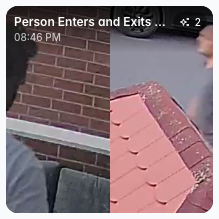
- Home. Episodes appear in the Recent Events row as a mosaic card, showing how many cameras took part.
- Recordings. The same mosaic card appears in the list. A recording that belongs to an episode shows an Open episode button that jumps to it. Episode cards follow the camera and time range filters; any other filter (labels, triggers, attributes, vehicles, search) hides them.
- Apple TV. Episodes are available in the Apple TV app too.
The episode player
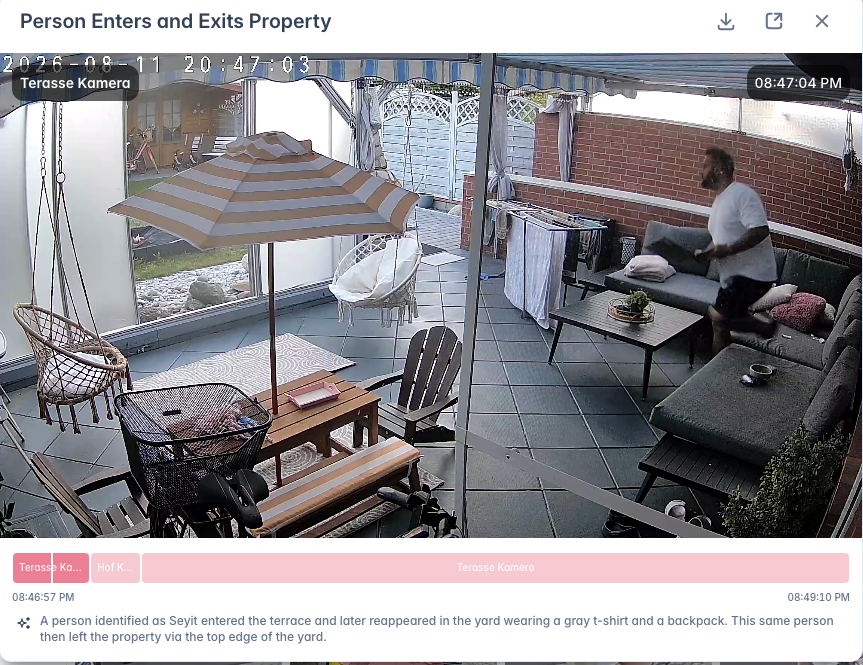
An episode plays as one sequence, switching cameras as the story moves and showing the current camera's name and time. The strip below the video has one block per camera stretch. Zoom and pan work as in the live view.
When a second camera covers the same room on the floor plan, the cut plays whichever had the subject closest, and the control bar offers Second angle for the other view of that stretch.
Why an episode turned out this way
The trace icon on an episode, on its card and in the player, opens what went into it: every event that was a candidate and whether it stayed or went, and for the ones that went the reason, from "never moved" to "belongs to another episode". Below that are the connections it drew between the remaining events, both AI passes with the pictures and instructions the model was given and what it answered, and the cut that came out, including a stretch that was dropped because another camera saw it better. Download bundle packs it together with the clip for a bug report.