
Zones & privacy
Zones mark parts of the camera picture and give that area a job. There are five kinds, each with one job and its own tab in the editor: Motion, Objects, Alerts, Privacy and Lines.
One rule runs through all of them: a kind only narrows things down once it exists. No motion zone means motion counts everywhere, no object zone means every object type counts everywhere, no alert zone means everything that is detected may alert you.
Cameras that detect on their own
Reolink AI, Eufy, ONVIF events and plugins that report detections tell camera.ui what they saw, usually without saying where. Without a box there is nothing to place, so no zone can judge such a report and only the type lists still apply:
- Motion zones don't limit them. Their motion counts everywhere on that camera.
- Object zones still drop the types you left off, but the area has no effect.
- Alert zones shrink to a type selection. "Vehicles in the driveway" is not possible for such a camera, "vehicles" is.
- Lines never apply, a crossing needs tracking and there is nothing to track.
Two ways out. Let camera.ui detect for the camera: pick an AI backend as its object sensor instead of the camera's own detection, if your hardware carries the extra stream. Or keep the camera as the sensor and add an object assist plugin, which finds the reported object in the frame. Either way the detection has a box from then on and every zone works as described here. Cameras that do send coordinates are not affected.
Opening the editor
Open a camera's settings and go to the Settings tab. Under Zones you see what the camera already has, each with its color, name and type (Motion zone, Object zone, Alert zone, Privacy zone or Line crossing).
Below the list, Edit zones opens the editor over the camera image.

Motion, object and alert zones start out covering the whole image, so you drag the corners inward instead of drawing from scratch. A privacy zone is the exception: you click its points yourself.
Motion zones
Motion zones say where motion counts. Only motion inside a zone counts, in any of them if there are several. Motion is always judged by touch: as soon as movement reaches the zone, it counts.
Object zones
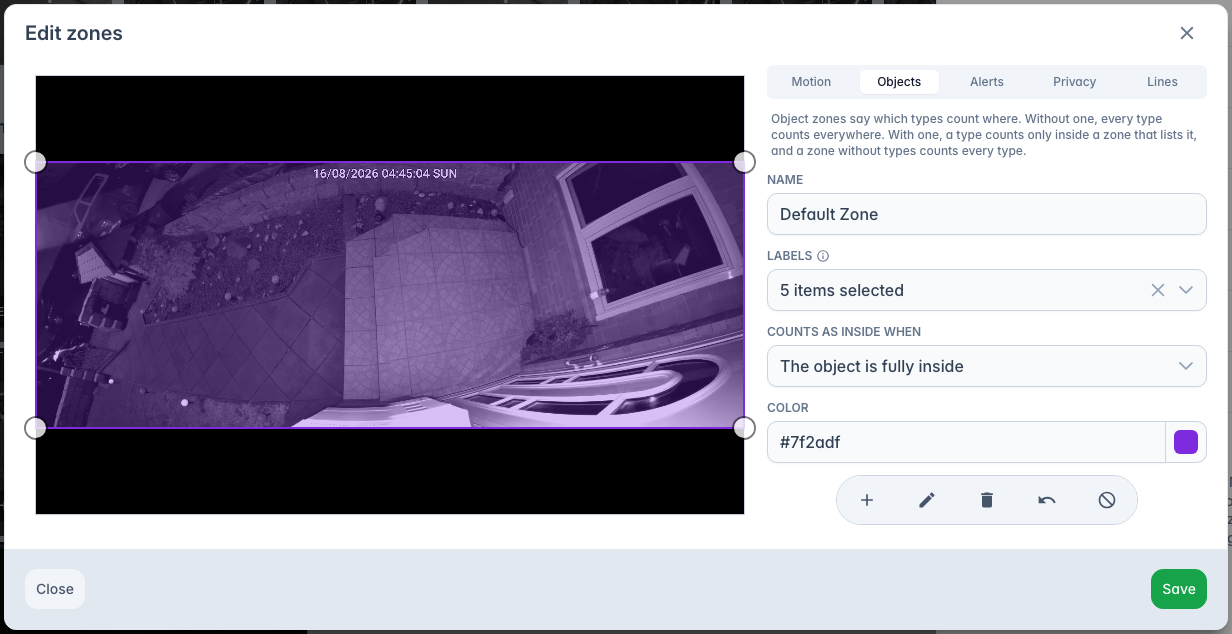
Object zones say which object types count, and where. A zone means: only what is inside here counts, for the types listed on it.
The Labels list has two groups. Under Base sit the object types: person, vehicle, animal. Under Identification sit Recognize faces and Read plates, which decide whether what counts here also gets a name.
A new object zone starts with nothing selected, which means every type counts in it and faces and plates are recognized as usual.
Combining zones
A zone only governs the types listed on it. Draw two zones, person on one and vehicle on the other, and a person counts in the first area while a vehicle counts in the second.
Give a type more than one zone and it counts in any of them. A zone with no types selected governs every type, so as soon as one exists, everything has to be inside some zone.
There is no way to cut a hole out of a zone. To keep an area out of detection, draw the zone around it, or put a privacy zone over it with Detections inside set to Are dropped.
Which types survive
Once every object zone carries a type list, those lists together are what the camera detects: a type that appears on none of them is dropped everywhere on that camera.
Recognize faces and Read plates count as types here. If every object zone has a list and none of them carries Recognize faces, the camera stops recognizing faces entirely, not just in one corner.
Counting without recognizing
Drop both Recognize faces and Read plates and the zone still detects the person and the car, but no face lands in your face list and no name or plate reaches the event or the push.
A zone that lists person and nothing else no longer recognizes faces. Tick Person and Recognize faces together to get the person counted and named; Recognize faces alone finds nothing.
It does not lower CPU use, it only holds the result back.
Match mode
Counts as inside when decides what makes a detection count for the zone:
- The object touches the zone. Any overlap is enough. This is the default.
- The object is fully inside. The whole box has to sit in the zone. A car that just clips the edge no longer triggers it.
Alert zones
An alert zone decides what gets you notified and changes nothing else: detection, events and recordings are untouched by it.
Once a camera has an alert zone, the zones decide its alerts:
- A type listed on a zone alerts while it is inside that zone.
- The same type outside that zone stays quiet.
- A type that no alert zone lists stays quiet everywhere on the camera.
With one alert zone over the driveway listing person and vehicle, someone on the road still lands on the timeline and in the recording, but only the driveway alerts. Animal is then on no zone, so animals stop alerting on that camera. Give a type a zone covering the whole image if it should keep alerting everywhere.
An alert zone with no types selected alerts on every type from inside it.
If you put a type on an alert zone that your object zones filter out, the editor says so.
Who exactly, and which plate
A zone can also name the people it pushes for. The Labels list has a second group, Who or what exactly, with Faces and Plates. Ticking one adds a field below it and pulls the matching type into the zone: Faces brings person along, Plates brings vehicle.
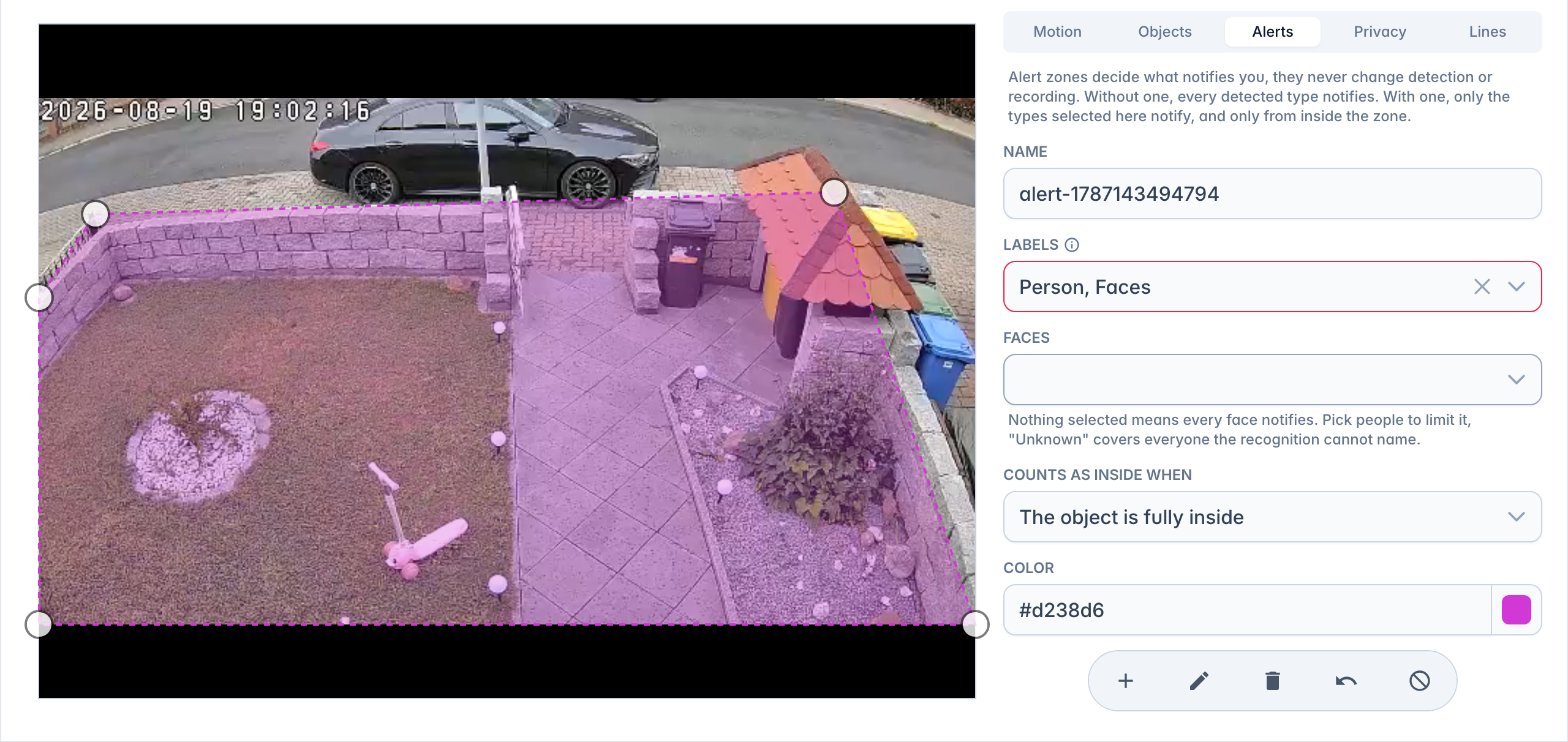
Faces is a list of who may push from inside the zone. It offers Unknown faces for everyone the recognition could not name, Any known face for anyone you have enrolled, and then each enrolled person by name. Pick nothing and every face pushes.
Plates works the same way, except you type the plates yourself rather than pick them. Pick nothing and every plate pushes.
Both lists only ever hold back people and vehicles.
Someone the camera could not identify counts as an unknown face, whether the recognition failed or no face was ever captured. A person on the ignore list stays silent either way. And if the object zone over that area has Recognize faces switched off, nobody there is ever identified, so everyone counts as unknown.
Where it counts as inside
Alert zones add a third option, The object stands in the zone: only the bottom center of the box has to be inside. Good for a driveway seen at an angle, where a tall person leans well past the edge. The default here is The object is fully inside.
Once a type has been inside during a stretch of activity, that whole stretch alerts. Someone who crosses the driveway and then waits on the road still gets you the alert for that visit.
What still applies
The master switch, the cooldown and quiet hours are separate from the zones and apply on top.
A doorbell press, a contact sensor, a siren or an audio alert is not an object detection, so an alert zone never holds it back.
Privacy zones
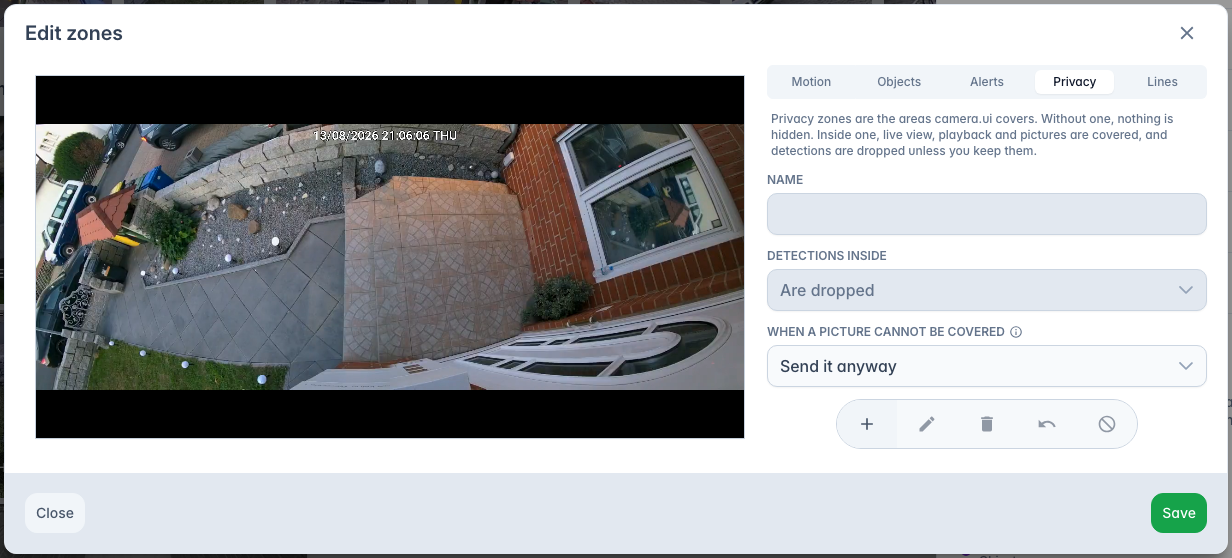
A privacy zone covers an area in black, for example a neighbour's window or a public pavement.
Detections inside decides what happens to detections there:
- Are dropped. Detections that sit completely inside the area are thrown away. Something that straddles the edge, like a person half in and half out, still counts. This is the default.
- Still count. The area is hidden but still watched, so a person walking behind it is detected without being shown.
What is hidden, and what is not
The black area is not burned into the video.
Hidden:
- Event and recording thumbnails, moment cards, face and plate crops, and episode mosaics.
- Pictures attached to push notifications.
- Snapshots: camera tiles, the camera list, the overview, the snapshot API, MQTT, HomeKit stills and the Home Assistant camera image.
- Live view and playback in the camera.ui web interface, and in the mobile apps, which run that same interface. The area is drawn black on top of the video.
- Live view, playback and the episode player in the Apple TV app, and the clip that loops on its Home screen, where the app draws the area black on top of the video.
- The preview that plays while you hover an event or a recording, and a picture you take with the camera button in the player.
Not hidden:
- The recording on disk, and anything you export or download from it.
- Video clips attached to push notifications.
- RTSP, and everything that reads it: HomeKit live and HomeKit recordings, the Home Assistant stream, and other apps.
- Picture-in-picture, which pops the bare video out of the page and leaves the black area behind.
If an area must never be filmed at all, point the camera elsewhere, or use the camera's own privacy mask if it has one, which blanks the area before the picture reaches camera.ui.
When a picture cannot be covered
Sometimes camera.ui cannot paint the black area, for example on a hardware frame it could not read back, or a pixel format it does not know. When a picture cannot be covered, at the bottom of the Privacy tab and valid for the whole camera, decides what happens then:
- Send it anyway. The picture goes out uncovered. This is the default.
- Send no picture. No picture is produced at all.
Lines (line-crossing)
A line detects when something crosses it. Crossing direction picks when it fires:
- A ↔ B both ways triggers in either direction.
- A → B or B → A triggers on a crossing in one direction.
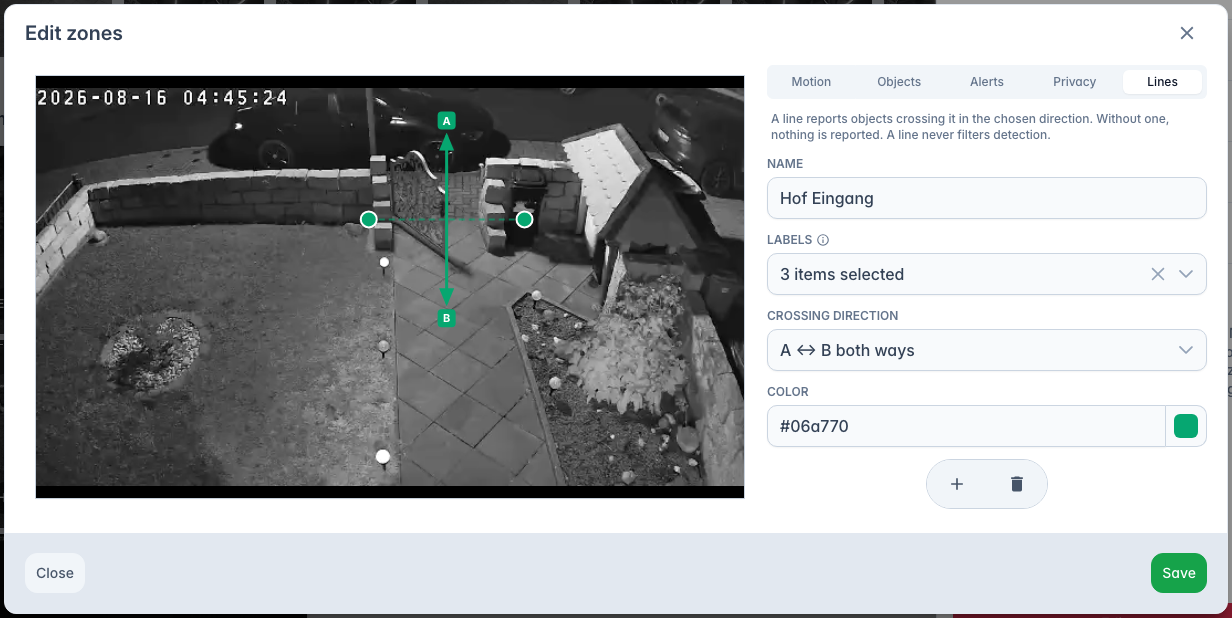
A line can be limited to person, vehicle and animal; a new line starts with all three selected. A line never filters detection.