
Updating
camera.ui has two parts that update: the server and the app you installed it with. Both are handled on the Updates page, whichever way you installed.
The Updates page
Updates in the navigation collects everything that can be updated, in three sections: Server, Plugins and Workers. A row with a newer version opens that version's release notes, Check for updates looks again. Admins only.
Update all installs workers first, then plugins, and the server last, because installing the server restarts it. A failed item can be retried on its own. Only one run happens at a time, so the button waits while a plugin or worker update you started by hand is running.
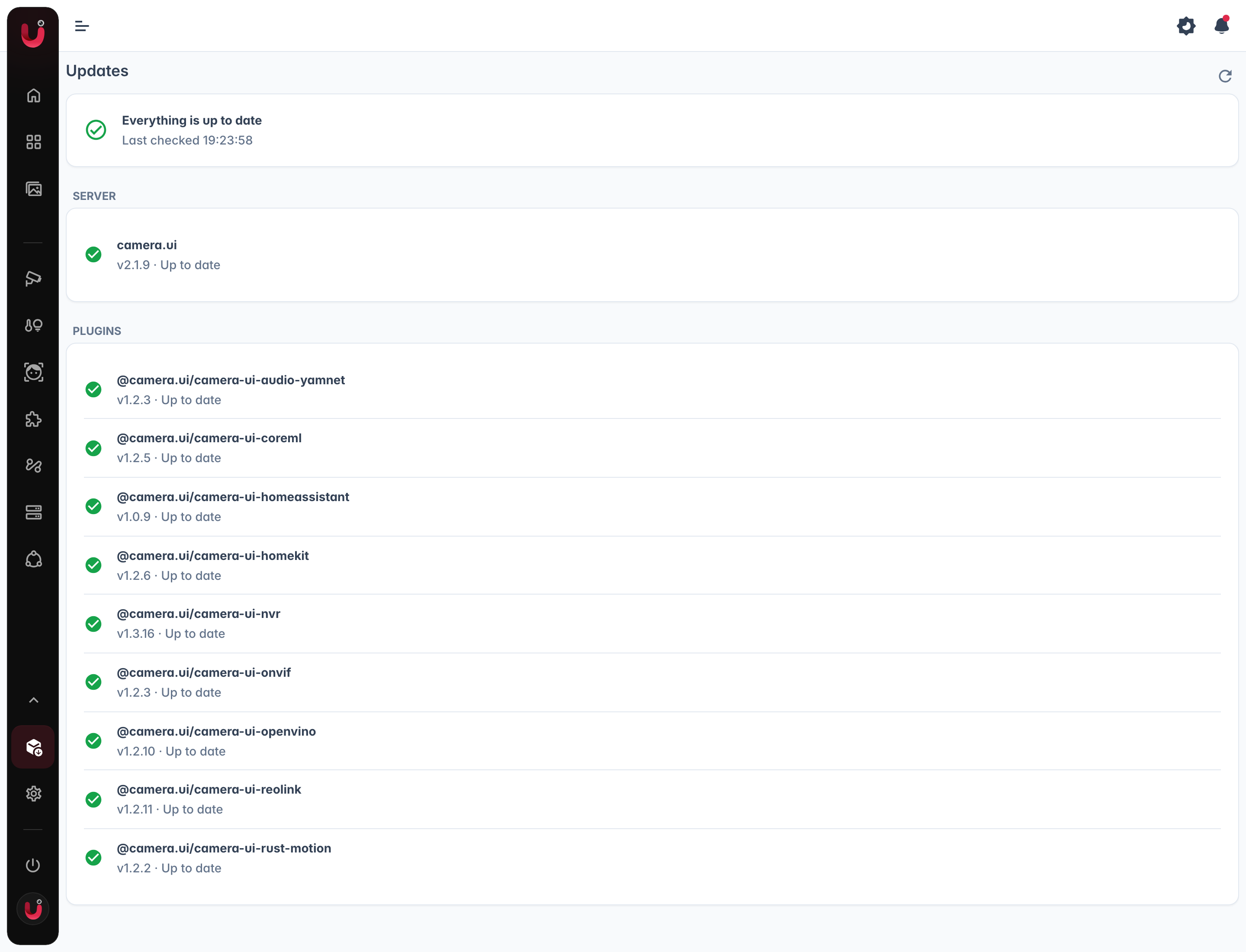
A row can also say why it cannot be updated from here. Updates with the desktop app means an app too old to install its own updates remotely, so update it on its machine.
camera.ui checks for new versions every 10 minutes and notifies you when the server, a plugin or a worker has one.
Updating the server
How the server updates depends on the install method:
- Docker or bare-metal. The Updates page installs the new version and restarts the server. Pulling a new Docker image does not update the server (see Updating the Docker image).
- Desktop app. The app and the server move together, so the Server row is the app itself. See Updating the desktop app.
A pre-release notification is titled Beta update.
Beta updates
With Beta updates on in Settings → System, the server offers pre-release versions, and Manage on that page lists them to install a specific one. The switch reaches everything that follows this server: the desktop app moves to the beta feed, a server on a beta pulls its desktop workers onto the matching beta, and on the mobile app it also turns on beta over-the-air updates of the interface. Pre-releases can be less stable. Once you are on a pre-release, the server keeps offering the next beta even if you turn the switch back off. Install a stable version from Manage to leave the beta track.

Beta versions of plugins
Plugins have their own switch, and the server's Beta updates does not reach them. Beta versions in the gear menu next to the search on the Plugins page adds pre-releases to each plugin's version picker and offers them as updates. Turned off, an installed beta stays until you pick another version. See Plugins.
Updating the desktop app
The desktop app installs updates at startup and keeps checking while it runs. A found update appears as the Server row on the Updates page: installing it downloads the update and relaunches the app, also from another device. Left alone, it installs on the next start.
One exception on Linux: only the .AppImage updates itself. The .deb is updated by installing the new .deb from the download page.
Updating the Docker image
The server and the Docker image update separately. The launcher installs the server into the volume on first start and keeps that version across every later pull.
To update the image (base OS, GPU libraries, launcher):
docker compose pull
docker compose up -d
To update the server, use the Updates page, or run cameraui update-server -H /data in the container and restart it. The -H /data matters: without it the update lands outside the data volume and the restart boots the old version again.
Updating the mobile apps
The mobile apps update through the App Store and Google Play (during the beta: TestFlight on iOS, the Play Store testing track on Android), and also receive over-the-air updates to the interface.