
Floor plan
The floor plan is a drawing of your home with the cameras and sensors on it, under Floor Plan in the menu. Everyone can look at it, drawing needs admin.
It is live: a camera lights up while it sees something, sensors show their state and can be operated right on the plan. The drawing is also read by camera.ui itself. It knows which rooms connect, how long it takes to walk from one camera to the next, and which sensor sits at which door.
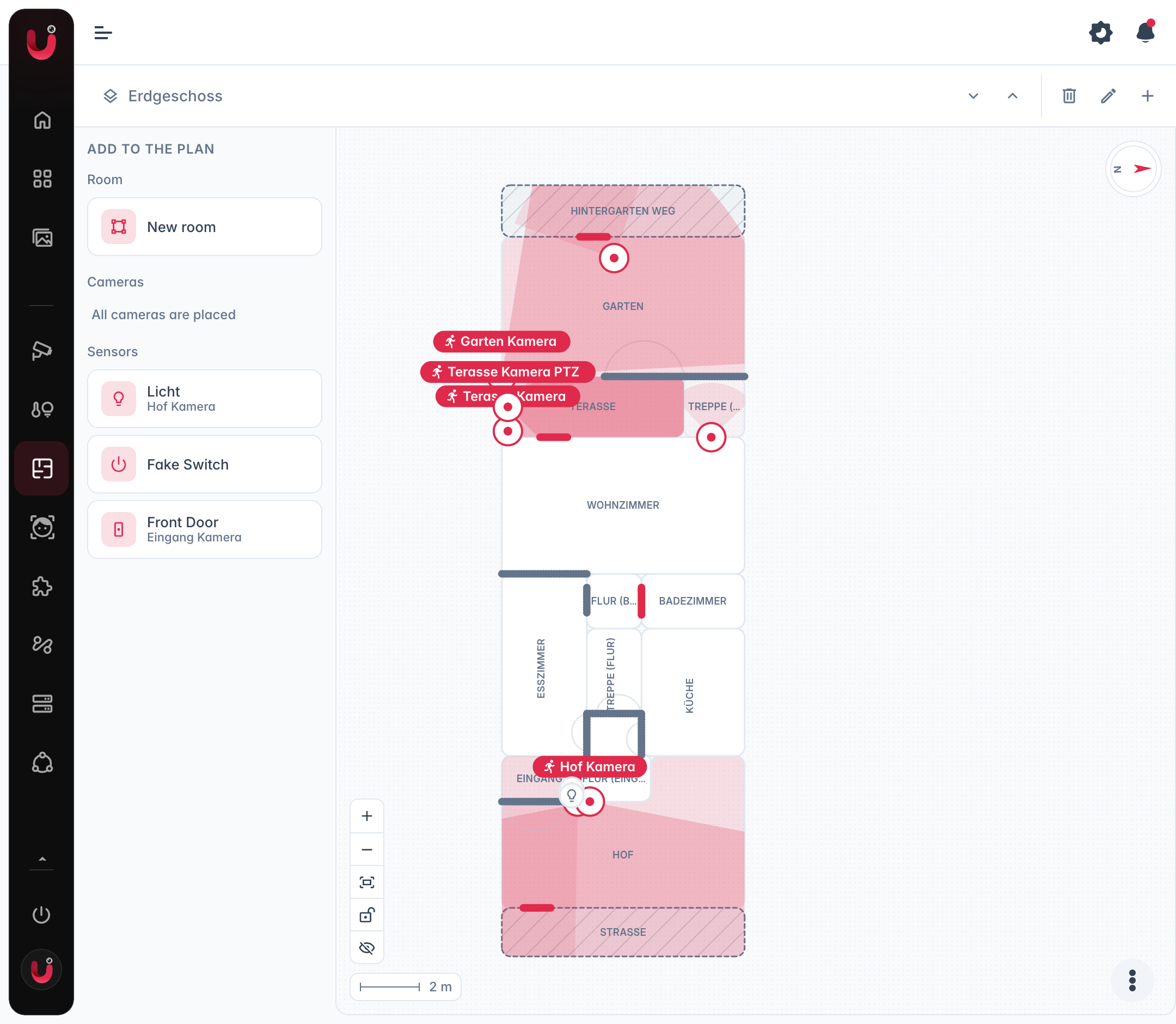
Drawing
Start with a level, one per floor. They live behind the button in the top left.
Then drag pieces from the palette onto the canvas. On a phone the plus button opens the same palette.
- Rooms. Drag New room in, then move and resize the rectangle. A room around a corner, an L-shaped yard for example, is drawn as several rectangles: draw the second one and set its Belongs to to the first, and the two count as one room.
- Kind. A room is Inside, Outside, on the property, or Outside world. The last one is the street, the pavement, a neighbour's land: someone arriving from there was not seen anywhere before, so camera.ui does not look for an earlier sighting. Draw the gate or the front path as the place where they get in.
- Connections. Rooms that only share a wall are not connected. Put a Door, an Open passage or Stairs on the shared wall, slide it along the wall and drag its dots to set the width. Between two levels the connection is always stairs.
- Cameras. Drag a camera into the room it watches, then set Direction, Field of view and Range on the right. The cone on the plan follows, and the room you drop it in becomes its room in the camera settings. A camera without a room adds nothing to the spatial context.
- Sensors. Same idea. A contact or a lock that reports on one specific door gets Belongs to passage, so its state is read as that door opening rather than as something happening in the room.
- North. Drag the compass until it matches reality.
- Note. Rooms, cameras, sensors and connections each take a free-text note for what the drawing cannot show. The AI reads it when it describes an event.
Centimetre accuracy buys nothing. Rooms roughly the right size in roughly the right place, with the cameras pointing the right way, is enough.
Changes are kept only when you select Save. The dots button holds undo, redo, Clear this level and Discard changes. The lock button freezes the plan, so panning around cannot move anything by accident.
Reading it
- A camera's cone lights up while the camera sees something, with icons for what was detected.
- Point at a camera for its live picture and Open camera.
- Point at a sensor for its state, and for an accessory its control: a light toggles, an alarm panel offers its modes.
- Blind spots hatches every part of a room that no camera covers.
What the plan is used for
- Episodes use it to tell activity apart. Two things happening at the same time in different corners of the property stay separate stories, a quick walk from the hall to the drive stays one, and the title names the places. Two cameras on the same room count as two angles of one scene: the one that had the subject closest plays, and the player offers the other.
- AI descriptions get the layout, the walking times and what nearby sensors read at the time as context.
- Recordings gains a Rooms filter, which selects the cameras placed in those rooms.
Next steps
Camera settings — the room a camera belongs to is set here too, and groups the home view. Sensors — what a sensor is and how it gets to a camera.