
MQTT
The Settings → MQTT page (admins only) connects camera.ui to an MQTT broker. Once connected, camera.ui publishes server events, camera states, detections, snapshots and sensor values as MQTT topics, and accepts commands for your sensors. It's off by default.
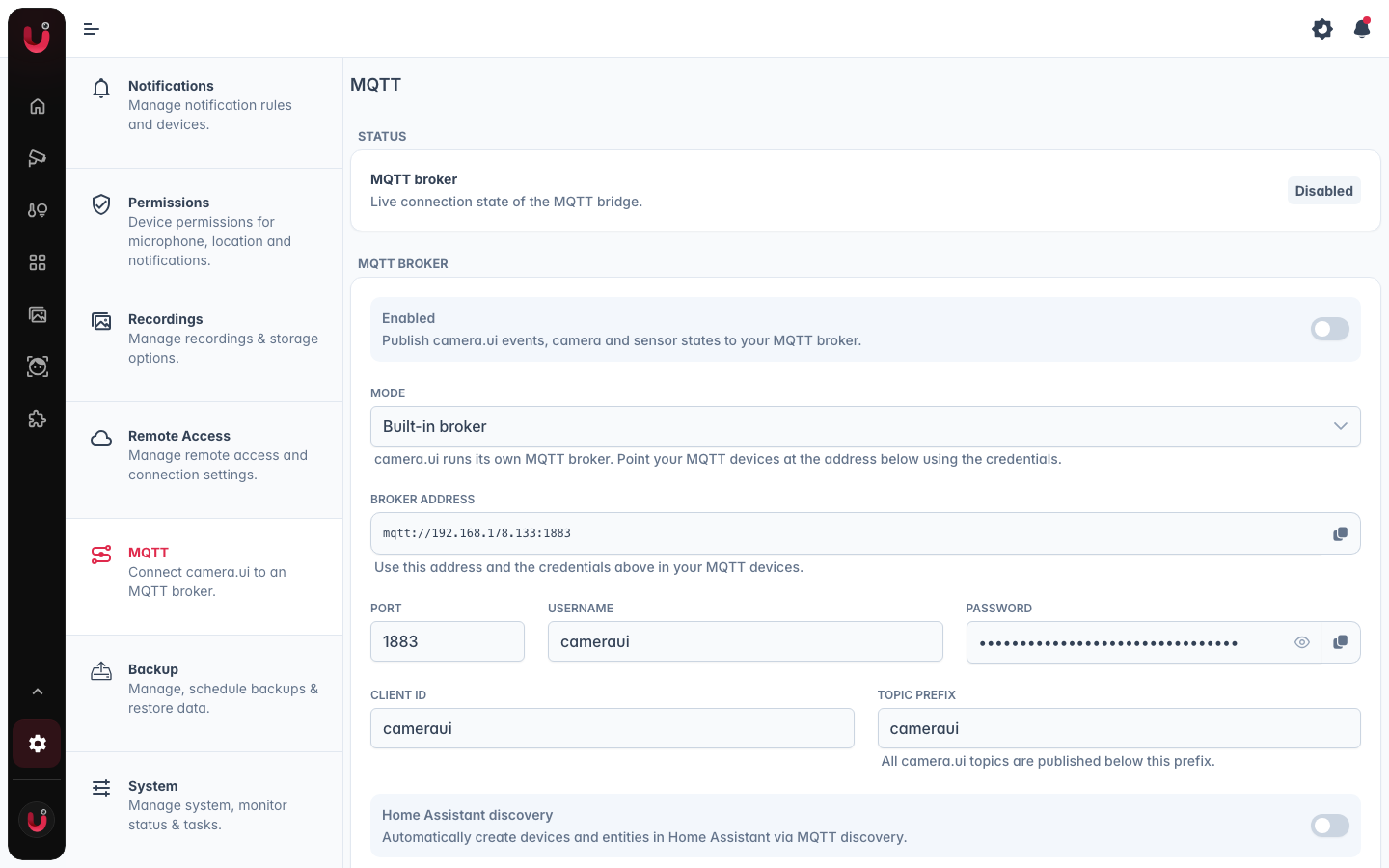
Turning it on
Switch Enabled on and fill in the connection. Every save restarts the connection, so a wrong value shows up right away in the status card at the top.
Mode
Mode decides where the broker lives.
- External broker. camera.ui connects to a broker you already run (Mosquitto, the Home Assistant Mosquitto add-on, and so on).
- Built-in broker. camera.ui runs its own broker and connects to it locally.
Built-in broker
camera.ui starts the broker on Port (default 1883) and shows the Broker address as a read-only field with a copy button, in the form mqtt://<server host>:<port>. Devices log in with:
- Username. Defaults to
cameraui. - Password. Generated randomly on first start, replaceable with your own.[1]
External broker
- Host. The broker's hostname or IP, for example
192.168.1.10. - Port. Defaults to
1883. - Protocol.
mqtt:// (TCP)ormqtts:// (TLS). Default ismqtt://. - Username and Password. Leave both empty for an anonymous broker. An empty password field after saving keeps the stored password.
Client ID and topic prefix
Both apply to either mode.
- Client ID. The name camera.ui registers with at the broker. Defaults to
cameraui. Change it if something else on your network already uses that ID. - Topic prefix. Everything camera.ui publishes lives below this prefix. Defaults to
cameraui. Letters, numbers,_,-and/separators only.
TLS
The TLS fields appear for an external broker on mqtts://.
- Verify server certificate. On by default. Turn it off only for a broker with a self-signed certificate.
- CA certificate (PEM). The certificate authority that signed the broker's certificate.
- Client certificate (PEM) and Client key (PEM). For brokers that require client certificates.
Testing and status
Test connection opens a short-lived, separate connection with the values currently in the form, without saving. For the built-in broker, save first: the test connects to the running broker.[2]
The status card at the top shows the live state of the connection:
| State | Meaning |
|---|---|
| Disabled | MQTT is off, or an external broker has no host set |
| Connecting… | The connection is being established |
| Connected | Connected to the broker |
| Reconnecting… | The connection dropped, camera.ui is retrying |
| Error | The last attempt failed · the card shows the broker's message |
When the built-in broker is running, the card says so along with its port.
Topic reference
<prefix> below is your topic prefix, <id> the camera's ID, <sensorId> a sensor's ID. In topic segments, #, +, / and whitespace are replaced with -.
State topics are retained, so a subscriber that connects later still gets the current value. Events are not retained.
Sensors publish under their own tree, not under a camera: a sensor is its own entity and can belong to several cameras or none. Only exposed sensors are published; turning the expose toggle off clears the sensor's retained topics.
What camera.ui publishes
| Topic | Payload | Retained |
|---|---|---|
<prefix>/status | online · offline | yes |
<prefix>/server/state | JSON with the server version and a timestamp | yes |
<prefix>/server/event | JSON, started or shutdown with a timestamp | no |
<prefix>/server/notification | JSON, system notifications | no |
<prefix>/plugin/<name>/status | started · stopped · error · crashed | yes |
<prefix>/camera/<id>/status | online · offline | yes |
<prefix>/camera/<id>/frameworker | online · offline | yes |
<prefix>/camera/<id>/meta | JSON: id, name, room, type, disabled, camera info | yes |
<prefix>/camera/<id>/event | JSON detection event, start to end | no |
<prefix>/camera/<id>/motion | ON · OFF | yes |
<prefix>/camera/<id>/detection/<label> | ON · OFF, one topic per detected label | yes |
<prefix>/camera/<id>/snapshot | JPEG of the last event thumbnail | yes |
<prefix>/sensor/<sensorId>/meta | JSON: ID, type, name, display name, plugin, assigned cameras | yes |
<prefix>/sensor/<sensorId>/<property> | the property's value as JSON | yes |
<prefix>/status is also the last will: if camera.ui goes away without saying goodbye, the broker publishes offline for it.
The motion topic goes ON when an event includes motion, a label topic when that label is first detected. Both go back to OFF when the event ends. The event payload carries the detection details without any image data. The image goes to the snapshot topic.
What camera.ui subscribes to
| Topic | Purpose |
|---|---|
<prefix>/sensor/<sensorId>/<property>/set | Set a sensor property |
Publish to a /set topic to control a sensor: ON and OFF become true and false, anything else is read as JSON and falls back to plain text. Detection sensors ignore commands, their values come from the camera.
Automations with an MQTT trigger subscribe to their own topics on top of this.
Home Assistant discovery
Home Assistant discovery makes Home Assistant create the devices and entities for you, no YAML. It's off by default.
Pick one path, not both
MQTT discovery is one of two ways to get camera.ui entities into Home Assistant. The other is the Home Assistant integration, which needs no broker. The two do not merge: run both and every device shows up twice. Use MQTT discovery if you already run a broker, otherwise use the integration.
Turn it on and check the Discovery prefix. It has to match the discovery prefix configured in Home Assistant, which is homeassistant unless you changed it.
Home Assistant then builds one device per camera, using the camera's name, plus its model and firmware version when camera.ui knows them. Each device gets:
- Status. A connectivity sensor, listed under diagnostics.
- Motion. A motion sensor.
- Snapshot. A camera entity fed by the snapshot topic.
- Person, Vehicle, Animal, Package. Detection sensors, only for cameras that have object detection.
Every exposed sensor becomes a device of its own when its type maps to a Home Assistant one: contact, occupancy, smoke and leak sensors, doorbells, temperature, humidity and battery readings, switches, lights (with brightness where the light supports it), sirens, locks, garage doors and security systems. A sensor assigned to exactly one camera is linked below that camera's device. Switches, lights, sirens, locks, garage doors and security systems are controllable from Home Assistant.[3]
Entities stay available only while both camera.ui and the camera are online. Status is the exception: it follows camera.ui alone, so it can still report the camera as offline. Turning discovery back off, turning MQTT off, or changing the discovery prefix or topic prefix removes the entities camera.ui created.
Next steps
- Automations — react to an incoming MQTT message, or publish one as an action.
- Sensors — the sensors that show up on the sensor topics and in Home Assistant, and the expose toggle that controls it.
Clearing the username or the password lets the built-in broker accept any client without credentials. ↩︎
Testing the built-in broker before it's ever been saved reports that the broker isn't running. ↩︎
Detection sensors (motion, object, audio, face, license plate and the like) get no entity of their own. They feed the Motion and detection entities above. ↩︎