
Assistant setup
Everything the assistant needs sits under Settings → Assistant, admins only: the models it may use, which plugins may use them too, what bounds a run, and the endpoints other AI tools talk to.
Choosing a model
The assistant uses models you bring; nothing is sent to camera.ui. Add model takes as many as you like, local and cloud side by side.
- Ollama. Runs on your own hardware, nothing leaves your network. Install Ollama, pull a model that supports tool calling, and enter the Server URL if Ollama does not run on the camera.ui machine.
- OpenAI-compatible server. Any server speaking the OpenAI chat completions API: LM Studio, vLLM, LiteLLM, llama.cpp. Enter its Server URL and, if it requires one, an API key.
- OpenAI, Anthropic, Google Gemini, OpenRouter. Cloud providers. Paste the API key of your account, or reuse the key of a model you already added for the same provider. The key is stored encrypted on the server and never reaches the browser or a plugin. The provider bills you per token.
- A plugin. Plugin models show up in the provider list, Apple LLM (plugin) for example, and answer on the machine the plugin runs on. The Apple LLM plugin needs a Mac with Apple Silicon and Apple Intelligence (macOS 26, pictures from macOS 27). It holds only a short conversation: fine for questions about cameras and the docs, weak on long multi-step tasks.
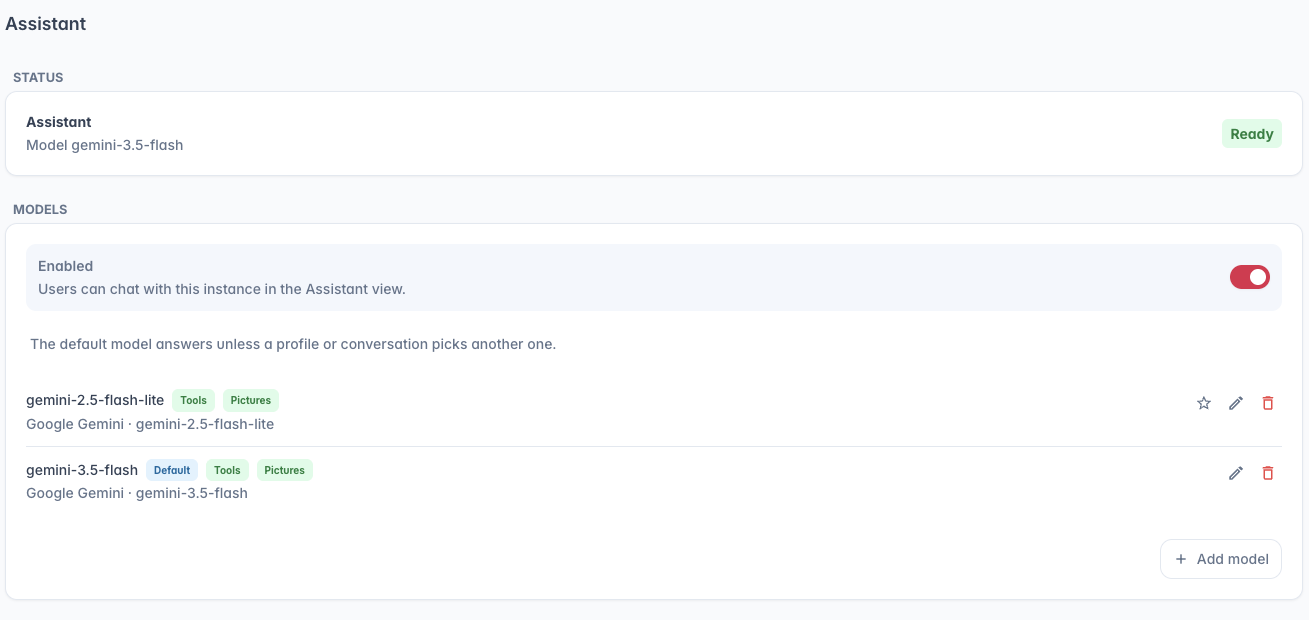
Pick the Model from the list the provider offers (the arrow loads it) or type its name. Saving tests the model with two short requests: whether it calls a tool, and whether it accepts a picture. The result shows as badges in the list (Tools, No tools, Pictures, No pictures, Test failed), and saving again repeats the test.
The default model answers wherever nothing else is picked: conversations without a profile, scheduled prompts, the recordings search and what the assistant remembers. The star next to a model makes it the default; with none picked, the first one in the list answers. Deleting a model moves the profiles and plugins that used it to the default.
A model can be kept for admins: switch off Available to users in its dialog and the list marks it Admins only. What users run then falls back to the default model, or to the first one open to them. Without such a model the assistant counts as not set up for them.
Send images to the model is a switch per model. With it on, a snapshot the assistant takes or an event picture from the recordings goes to the model so it can describe what it sees, which with a cloud provider means the picture leaves your machine. The pictures are always shown in the chat, whether the model receives them or not.
Small models and the context window
Context window in the model dialog says how much this model holds. A plugin model brings the number itself, for everything else it is empty and the context budget from the general settings applies. Set it for a local or small model, 8192 for an 8k model for example, and camera.ui plans the request around it: the procedures move behind a load_skill call, the feature list gives way to a hint at the documentation, and tools the question did not start from are listed by name and fetched when the model wants them. The same happens on a large model in a big installation, where many plugins and connected servers push the tool list past what the window can carry.
Pick the tools first in the same dialog helps models that get lost in a long tool list: one extra call per question asks the model which tools it needs, and only those are offered, with a short set of rules. A plugin model switches it on by itself when it needs it; leave it off for large models.
Models without tools or pictures
Nothing is switched off for the user: every model can be picked, the assistant adapts and says what is missing.
- No tools. The model can only chat; questions about cameras, recordings or settings stay unanswered.
- No pictures. Snapshots and event pictures still appear in the chat, the model gets the text of the tool results instead.
Some models pass both tests and still call tools unreliably, with invented ids for example. When answers come back empty or wrong, try a larger model.
Plugin access
Plugins can use your models too, the NVR plugin for event descriptions and to double-check text alerts. Under Plugin access pick a model per plugin or No access. The plugin sends its request to camera.ui, which runs it on that model, so the key stays on the server and a plugin on a worker needs no internet access of its own. Its tokens show up under Usage with the plugin's name. The list is a decision, not a protection: plugins run with the rights of camera.ui.
Thinking, cost and limits
Thinking sets how long the model reasons before it answers. Model default sends nothing and leaves it to the provider, Off asks for a direct answer, Brief and Thorough request short or long reasoning. The setting is mapped to what each provider offers, and a model without reasoning ignores it. When the model shares its reasoning, the answer shows a collapsible Thinking block.
Under every answer a small line shows the tokens sent and received, the time it took, the output speed and, for a model with a known list price, an estimated cost. Usage adds it up per user or plugin, model and month, chats and scheduled prompts together. The estimate uses public list prices and the tokens the provider reported; the invoice of your provider is what counts.
The Behavior card bounds a run:
- Model turns per question. How often the model may call tools and think again before it has to answer. Default 8.
- Tool calls per question. A hard stop against a model stuck in a loop. Default 25.
- Context budget. How much of a long conversation the model sees. Ollama models get a context window of this size plus headroom for the instructions and the answer, so lower it on small hardware. Without it Ollama would use its 4k default and cut off the instructions, and the assistant would then claim it cannot look at your cameras.
- Conversations kept per user and Pictures kept per conversation. What the history takes on disk. Older ones go first. Defaults 50 and 24.
- Additional instructions. Appended to the built-in instructions, for house rules and camera hints, for example which camera points at the street.
- Remember facts about users. Lets the assistant keep facts like names across conversations. On by default, and every user sees and clears their own list in the chat. A model with a window under 16k tokens only remembers what you ask it to remember, nothing it picks up on its own.
Reset to defaults puts these values back, the additional instructions stay.
Shell commands
Off by default. Shell commands lets admins ask the assistant for host diagnostics the other tools cannot answer: disk usage, whether a camera answers on the network, processes, container logs. The assistant runs one command at a time on the server that hosts camera.ui, and every command is shown with the exact command line to allow, edit or reject before it runs. Output is capped, a command is killed after 30 seconds by default, and the tool never appears in the MCP server, in scheduled prompts or in automations. What you allow runs with the rights of the camera.ui process. While the switch is off and a question would need it, the answer carries the switch, so an admin can turn it on in the chat.
MCP: use the instance from other AI tools
The assistant's tools are also available over the Model Context Protocol, so Claude Code, Claude Desktop, Cursor and similar tools can ask your instance directly, with their own model. Turn on Enable MCP endpoint, create an API token under Account, and paste the setup snippet the page shows for your client. The endpoint is /api/assistant/mcp, authenticated with the token as bearer.
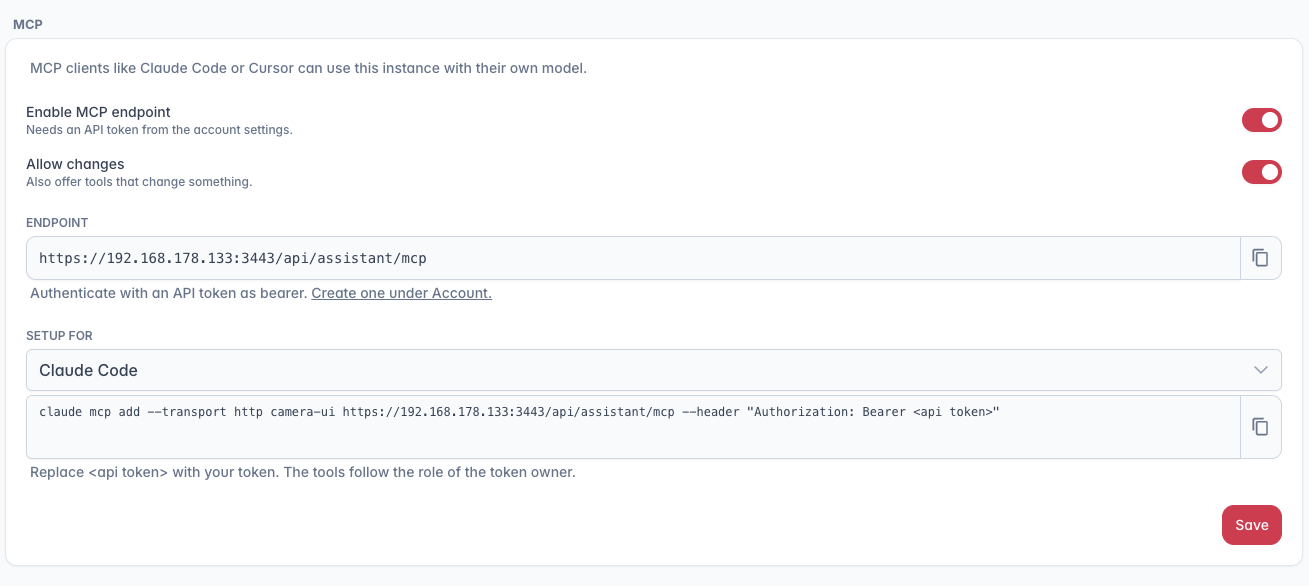
By default only reading tools are offered: cameras, snapshots, system status, recordings, the read side of the API. Allow changes adds the tools that change something. camera.ui cannot ask for confirmation over MCP, so the client is responsible for that; Claude Code and Claude Desktop ask before every tool call. The tools follow the role of the token owner, a user account never sees admin tools. The endpoint is independent of the chat model, so it works even when no model is configured.
External MCP servers
Other systems that offer an MCP server can lend the assistant their tools. Add one under External MCP servers with a name, its URL and an access token; the token is stored encrypted. The state next to the name shows whether the server answered and how many tools it offers. Accept a self-signed certificate is there for servers in your own network. Before a tool of such a server runs, the user confirms it, unless the server marks the tool as read-only. Many servers mark nothing, Home Assistant for example. Under Tools, the tab of the server has the field Run without asking: the tools picked there run without confirmation, in scheduled prompts and automations too, so pick only tools that read. In the chat these tools form their own group that can be switched off per conversation.
For Home Assistant enable the Model Context Protocol Server integration, create a long-lived access token in your Home Assistant profile and enter http://<home-assistant>:8123/api/mcp as the URL. The assistant can then read states and switch lights, scenes and climate through Home Assistant's own tools, and it can wire them into automations.
Next steps
Assistant — what it can do and how it is used day to day.