
Assistant
The Assistant answers questions about your instance in plain language: what happened at home today, whether every camera is online, which sensors are active, what a camera sees right now. The answers come from a language model you bring, and the model reaches your instance only through a fixed set of tools. Anything that changes something is shown to you first and runs after you confirm it.
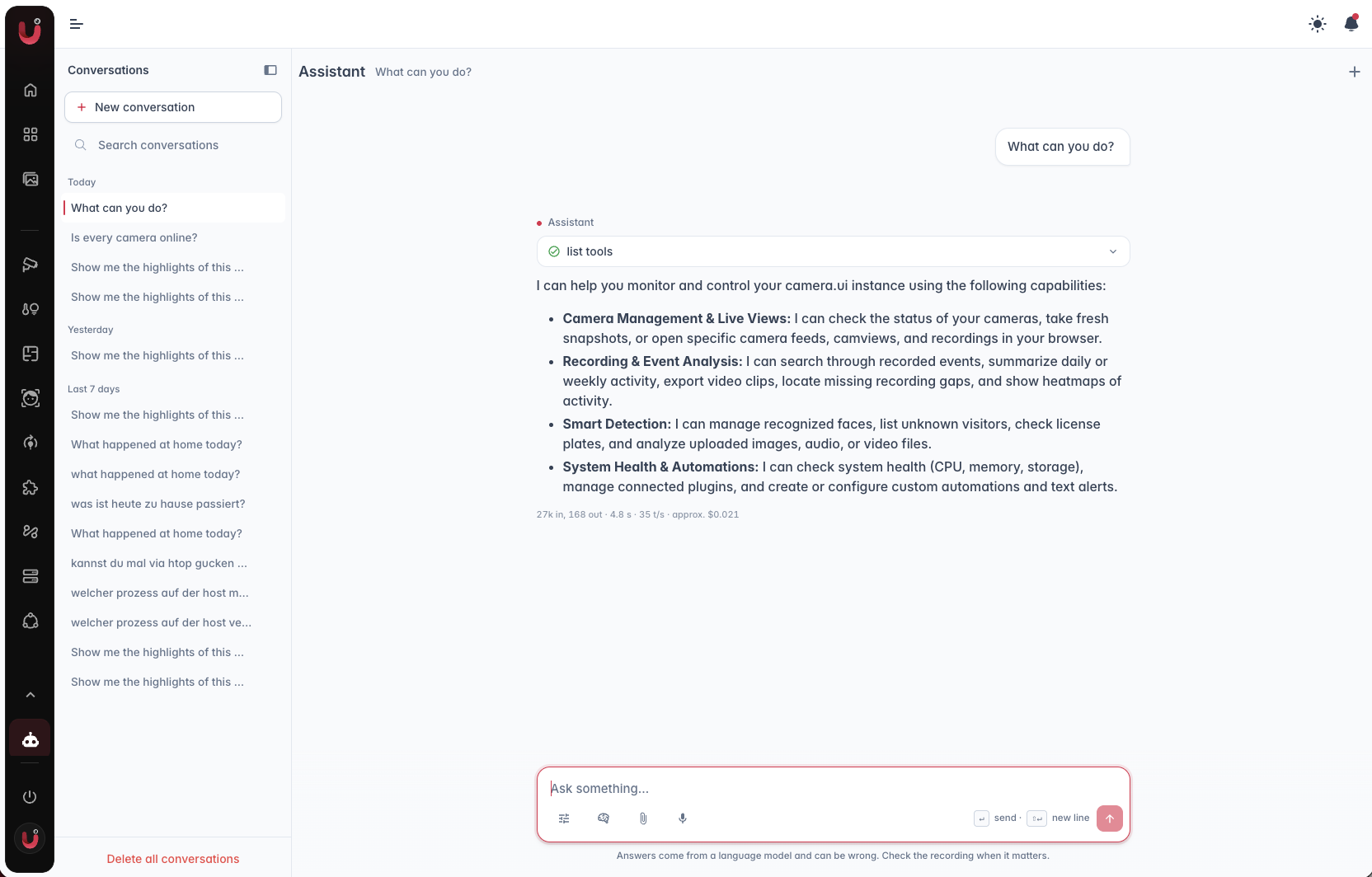
Once an admin has set it up, every user sees the Assistant in the navigation, and the sparkle button in the top bar opens it on any page: as a side panel, or as a small window in the corner that leaves the page usable while you chat.
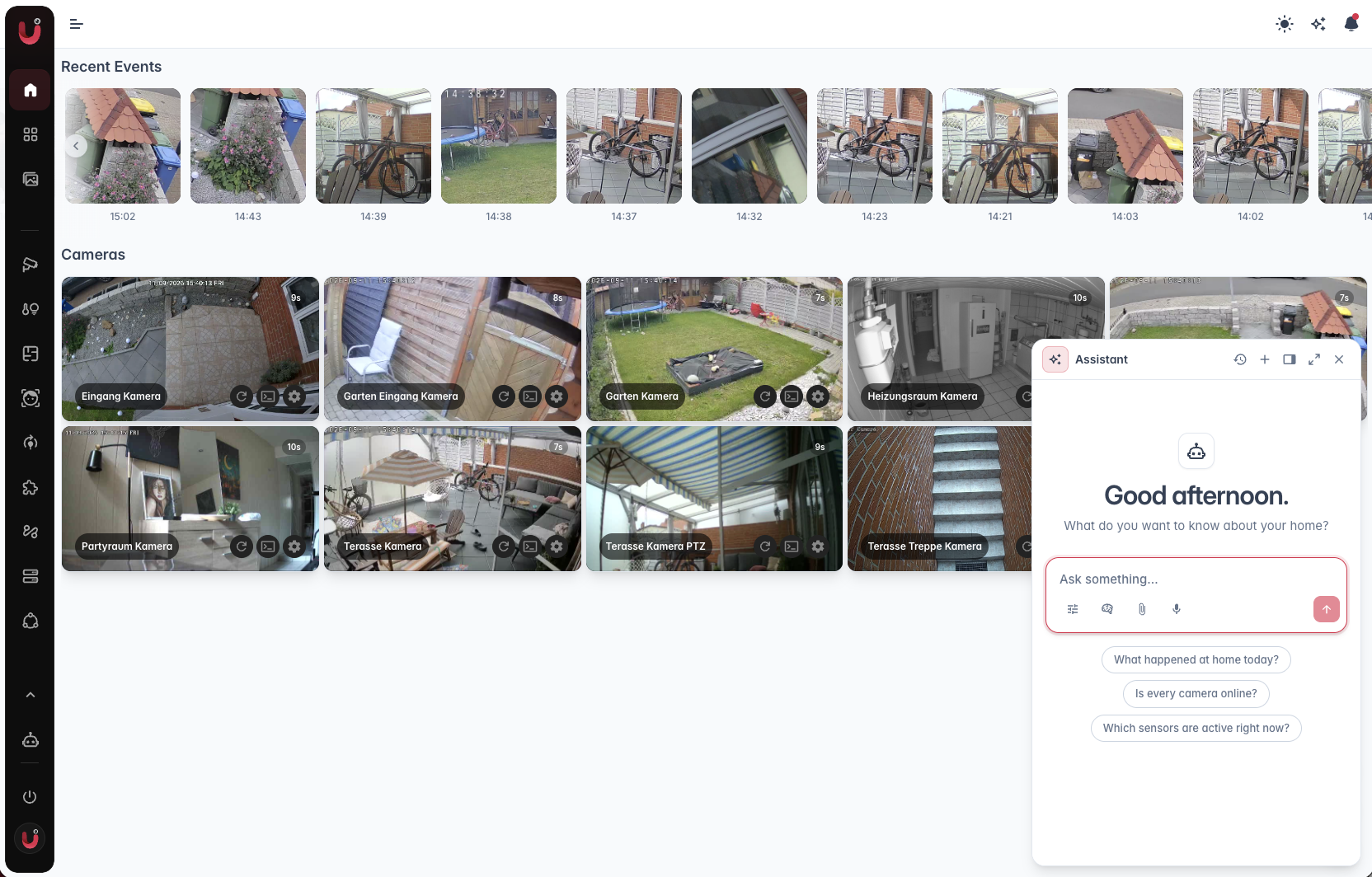
Asking
The assistant answers in your interface language unless Answer language is set to a fixed one. Every tool it used appears as a card under the answer with its arguments and result.
It also works the app for you: "show me the garden camera", "open the recording of the gate from 7:12" or "go to the automations" opens the matching page, and on a camera page it moves and zooms the timeline. It does that only when you ask to see or do something, a plain question is answered in the chat. The recordings page has its own box for the assistant, see Browsing recordings.
When a request is ambiguous the assistant asks back with a small form: pick a camera, choose a time range, or type an answer. Skip the question and it continues with an assumption it names. A recap of a day or a system check comes back as a card with one row per camera or component, and the rows open the moment they describe.
Next to the text box sits a microphone: the browser turns speech into text, camera.ui never receives audio. It shows up in browsers that offer speech recognition, on a secure connection, and in the iOS and Android apps, which ask for microphone and speech recognition access the first time.
The paper clip attaches your own files, pasting a picture works too: pictures up to 12 MB, audio up to 25 MB, video up to 60 MB, eight files per message. The assistant hands them to the detection plugins. Audio and video never go to the language model, only to the plugins. Attached pictures stay with the conversation, audio and video are analyzed once and not kept.
A recording card and a camera's menu both offer Ask the assistant, which opens the chat with that event or camera already named. During playback the camera's menu asks about the moment on screen instead of what the camera sees now.
Working with a conversation
Hover a message for its actions. A question can be edited and sent again, which discards everything after it. An answer can be regenerated, copied, or deleted together with its question. Branch from here copies the conversation up to that point into a new one. A stopped answer offers Continue. You can type the next message while an answer is still running; it waits below the text box and goes out when the answer is done.
The sliders button in the text box opens the settings of this conversation. Instructions apply to every answer in it, "answer in one sentence" for example, and keep working in long conversations where early messages drop out of what the model sees. Tools lists the tool groups (camera.ui, the documentation, one per plugin); a removed group is hidden from the model in this conversation. With more than one model the panel also picks the Model, and the conversation keeps it instead of the default. A combination of model, tool groups and instructions can be saved as a profile; profiles belong to your account.
Conversations are stored per user on the server, together with the pictures and the open-this buttons of the last tool calls. An answer that is still streaming survives a bad connection, a reload or a second tab: the browser picks the stream up where it broke off instead of asking the model again, and a confirmation that was waiting is shown again after a restart. Stop ends the run on the server too, closing the tab alone does not.
What the assistant remembers
Facts you mention or ask it to remember ("remember that our dog is called Bruno", "the Gate camera watches the street") are kept across conversations and given to the model every time. After each exchange a short model call picks such facts out on its own; events and anything temporary are never stored. A model with a context window below 16,000 tokens skips that step and keeps only what you ask it to remember. The brain button in the text box shows the list under What the assistant remembers about you, and each entry can be forgotten. Admins can turn the feature off.
What the assistant can do
The tools decide what the assistant can see and do. The Tools card at the bottom of Settings → Assistant lists them, one tab per provider: camera.ui itself and every plugin that contributes tools.
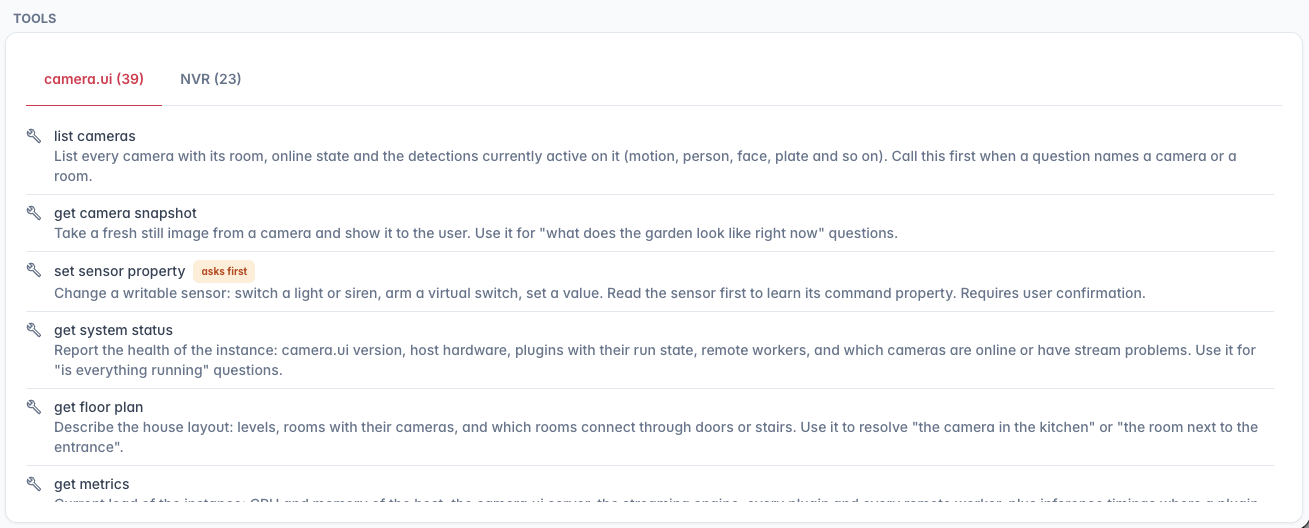
The camera.ui set is generic: snapshots, the sensors with their current state and switching one, push notifications to your own devices, the live load of the instance, the house layout, a health overview, and three generic API tools. Those three give the assistant the whole camera.ui REST API: it searches the endpoint that fits a question, reads it with your permissions, and changes something only after you confirm. That covers plugins, workers, sessions, automations, users and zones. Two instance tools cover what the API does not: discovering and adopting cameras and sensors, the notification history, logs, update checks, MQTT and process states. Credentials in the answers, stream passwords for example, are removed before the model sees them, and endpoints for login, configuration files, backups and downloads are never offered.
The assistant can also run a detection plugin (object, face, license plate or CLIP) on a fresh snapshot, a short sequence of snapshots or the picture of a recorded event.
With the NVR plugin it reaches your recordings: events and episodes in a time range, a summary of a day or a whole week, events searched by description, event pictures, known faces and when someone was last seen. Ask for the clip of a moment and it builds one with a download button, or sends it to your phone as a video notification. Faces the recognition could not name can be named, ignored or corrected in the chat. It also lists the license plates read in a period, tells when a camera is busiest and where in the picture the activity was, and shows the stretches a camera did not record.[1]
The assistant also knows the user documentation: it looks up how a feature works and where it lives in the app, and points there when it cannot do something from the chat. It never asks for passwords in the chat.
Tools that change something (switching a sensor, running an automation, sending a notification, marking a favorite, adopting a device) are marked asks first. The chat shows what the assistant wants to do with which arguments, Edit lets you correct the values, and it runs after Allow. Tools marked admin are not offered to users with the user role.
Text alerts and watching a camera
With the NVR plugin the assistant can watch your cameras for a description: "let me know when a delivery person comes", "alert me when a dog is in the garden". It saves a text alert, shows you past events that would have fired so you can judge the wording, and from then on every new event whose picture looks like the description sends a push with the picture. The picture match calibrates itself on your recordings, and when the NVR plugin may use a model that model looks at the pictures of every hit and only lets a push through when it agrees, with its reason as the push text. Alerts can be limited to cameras, can get a fixed match threshold instead of the automatic one (lower fires more often) and have a cooldown between two pushes. Ask the assistant to list, change, pause or delete them. An alert can also drive an automation: "when the parcel alert fires, switch on the porch light" becomes a flow with a System event trigger on the plugin's notifications.
"Keep an eye on the driveway for the next two hours" is the same thing with an end: the alert deletes itself at that time. Every hit appears in the conversation with the picture and a button to the recording, and as a push; when the watch ends the assistant posts a short summary. Nothing is streamed to the model in between, it only looks at pictures when the cameras record something.
Both need a CLIP plugin, the same one the description search uses.
Automations and scheduled prompts
Automations can ask the assistant: the Ask the assistant action takes a question with the variables of the flow ("Look at the picture from {{camera.name}}: is this a delivery?"), optionally the picture of a snapshot node, and delivers the answer to one user as push, as a conversation, or only as a variable for the next nodes. A Profile of that user sets the model, tools and instructions. When nothing is worth telling, the assistant stays silent and nothing is sent.
It also builds automations from a description: "when someone is on the terrace after 22:00, send me a push with a picture". The assistant assembles the flow from the same node types the editor uses, shows you the nodes and connections, and creates it once you allow it. The result opens in the automation editor like any other flow. Changing or running an existing automation works the same way. This needs the admin role.
A scheduled prompt is a question the assistant answers on a schedule, a summary of the day every evening for example. Ask for it in the chat or add one under Scheduled prompts with a title, the prompt, the time and the delivery: a push notification, a saved conversation, or both. An optional Profile runs it with that profile's model, tools and instructions. Model picks the model for this schedule alone, later through Change model in the schedule's menu; left empty, the profile's model or the default answers. Run now tries a schedule right away. Scheduled runs skip every tool that would ask for confirmation, and the answer comes in the language you used when you created the schedule. Up to 20 schedules per user.
The answers come from a language model and can be wrong. Where it matters, check the recording.
Next steps
Assistant setup — models, what plugins may use them, limits and the MCP endpoint.
The recordings tools build on recording (NVR), which requires an active camera.ui subscription. ↩︎