
Plugins
Most of what camera.ui does beyond live view comes from plugins: the AI backends and motion engines behind detection, audio detection, smart-home bridges like HomeKit, and camera-brand integrations. Managing plugins is an admin task.
Two things, kept separate
- Installing a plugin adds it to your server, once. This page covers that.
- Assigning a plugin to a camera decides which camera uses it, for example which motion engine a camera runs. That's done per camera, in Set up sensors.
Managing plugins

Plugins lists everything installed, each card with a live status (ready, started, stopped, error). From a card you can:
- Enable or disable it, and start, stop, or restart its process.
- Update it: the update button starts right away, click it again while it runs for the live install output. For release notes or a specific version, use the card menu.
- Open its settings, or view its logs.
- Uninstall it, optionally removing its stored data.
Recordings are the exception: if you delete a recording plugin's stored data, its footage is kept.
Update all in the toolbar updates every outdated plugin. While an update run from the Updates page is going on, plugins are stopped and can't be managed here.
The gear button next to the search bar holds two settings, both off by default:
- Beta versions. Shows pre-release versions in the version picker and offers beta releases as updates.
- Allow plugin build scripts. Lets plugins run install scripts and native builds while installing or updating. Only turn this on for plugins you trust.
The button next to the plus switches to a compact table view with status, version and actions per row; your choice is remembered.
Installs, updates and uninstalls run through a server-side queue, two at a time. Every open browser sees the queue, whoever started it.
Each plugin runs in its own process, so a crashing plugin doesn't take down the rest. A badge on the card shows its language (Node, Python or Go). A plugin built for a different plugin API doesn't start: its card says whether the plugin or camera.ui needs an update, and you get a notification.
Managing several at once
The select button works in both views: update, enable, disable or uninstall several plugins in one step.
Installing a plugin
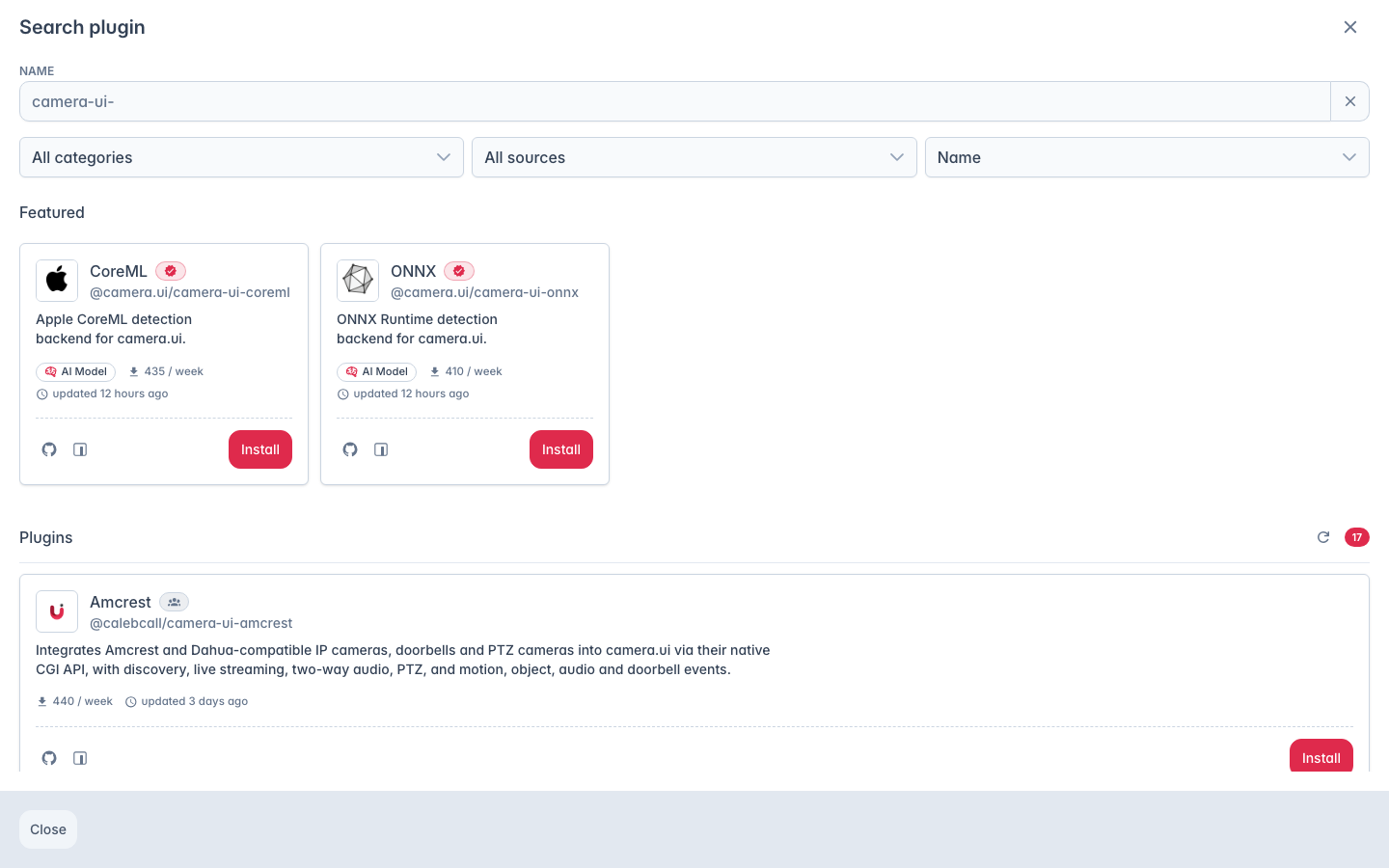
Search plugins opens the store. The list comes from npm, so any published camera.ui plugin can appear; camera.ui curates on top of it:
- Trust. Each plugin is marked Official (published by camera.ui), Verified (a community plugin the camera.ui team has reviewed), or Community (published by anyone, not reviewed). You can filter by trust level.
- Safety. Plugins known to be malicious or compromised are blocked: they don't show up, can't be installed, and one you already have is disabled automatically if it's later blocked.
- Compatibility. The store flags a plugin that needs a newer camera.ui, and installing a version that can't run on your server is refused with the reason.
- Browsing. Filter by category, start from the featured plugins, and sort by name, weekly downloads, or last update.
A specific version can be picked at install. Afterwards, enable the plugin and assign it where it's needed.
Private registry or mirror
Plugins come from whichever npm registry your .npmrc points at, so a company mirror or a private registry works for the store, for installs and for a plugin's own dependencies. Put the file in the home directory of the user that runs camera.ui:
registry=https://npm.example.com/
//npm.example.com/:_authToken=<token>- One registry for everything with
registry=, or a single scope with@example:registry=https://npm.example.com/. - Login with
//npm.example.com/:_authToken=<token>, or basic auth through//npm.example.com/:username=plus//npm.example.com/:_password=<base64>. Credentials are only sent to the host and path they are written for. - Token from the environment.
CAMERAUI_NPM_TOKEN(orNPM_TOKEN) replaces the token line. It applies to the registry fromregistry=, so a scope with its own registry keeps its token in.npmrc. - Docker: mount the file to
/root/.npmrc. The home directory is not part of the/datavolume. - Linux service: the home directory of the service user. Desktop app: the home directory of the logged-in user.
- Remote workers install plugins themselves, so each one needs the same file or the same variable.
The store lists packages named camera-ui-* or @scope/camera-ui-* that carry the keyword camera-ui-plugin. Registries without a search API, GitHub Packages for example, return no list: type the exact package name instead, and the store looks it up directly.
Settings
A plugin's own settings live on its page, under Settings, and apply server-wide. Settings that affect a single camera are edited in that camera's settings instead. Recording-plugin settings are kept with the rest of recording.
Setup guides
- HomeKit — add your cameras to Apple Home.
- Home Assistant — cameras, sensors and detection events as Home Assistant entities.
- Google Home and Alexa — not available yet, both are on the roadmap.